Placement detail page
Read what a placement does, choose its screen, and learn how tabs, drafts, the save bar, the preview and the unsaved-changes guard work.
Open a placement from the Placements list to see everything about it on one page. Use this page to check what the placement does right now, change its screen, spot problems, and jump to the tab that sets each part.
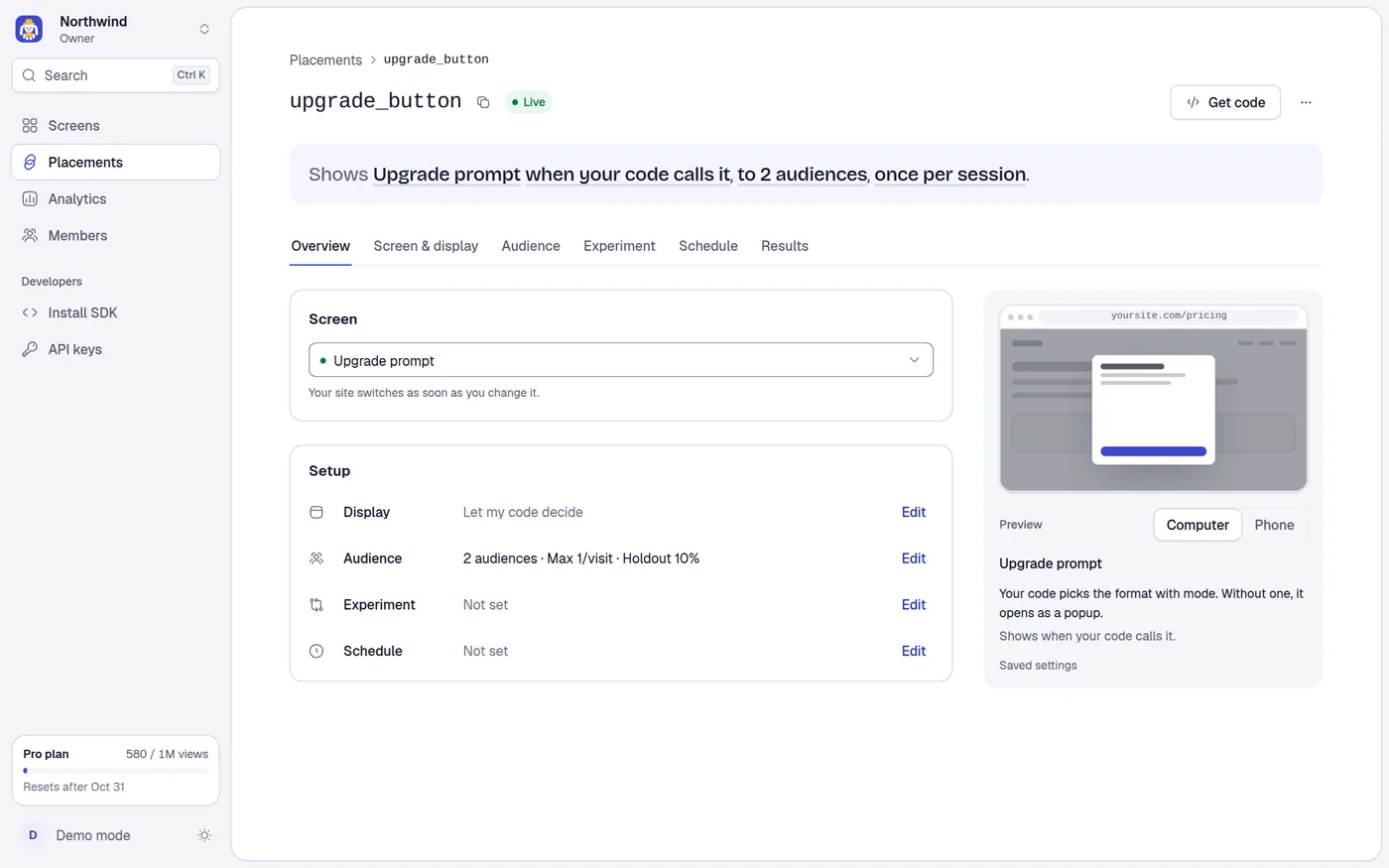
The address is /projects/PROJECT_ID/placements/PLACEMENT_ID. The tab is in the URL as ?tab=display, ?tab=audience, ?tab=experiment, ?tab=schedule or ?tab=results. Overview has no ?tab. An unknown ?tab value opens Overview. You can share the link or reload and stay on the same tab.
The header
- A breadcrumb: Placements (link back to the list) then the key.
- The key as the page title, with a copy button, and the same status badge as the list: Scheduled, A/B test, Shows nothing, Live or Screen not published.
- Get code: opens Install SDK for this placement's screen.
- A ... menu with Copy key and, for Admins and above, Delete. Delete works as on the list: a toast with Undo for 8 seconds, then you return to the list. Undo brings you back to this placement.
If the placement id does not exist (deleted, or a wrong link) the page says This placement doesn't exist with a Back to Placements button. If loading fails you get an error with Retry.
The one-line summary
Under the header, one sentence says what the placement does, built only from what is saved. Each underlined part links to the tab that sets it.
Shows Pro upgrade as a popup after 10 seconds on /pricing, to everyone, once per session.
The sentence is made of these parts, in order. Parts that are not set are left out.
| Part | Text |
|---|---|
| Screen | Shows and the screen name. a deleted screen if the screen no longer exists. |
| Format | as a popup, as a banner... Only when a format is set. |
| Trigger | when your code calls it, when the page loads, after 10 seconds, once the visitor scrolls 50% of the page, when the visitor is about to leave, followed by on every page, on /pricing and /blog/*, or on 3 pages. |
| Audience | to everyone or to 2 audiences. |
| Frequency | once per session, or at most 3 per day, at most 2 per week, at most 5 per visitor (for in total). |
| Experiment | vs Annual offer for 50% of visitors. |
| Schedule | A second sentence: Scheduled: Black Friday until Nov 29, 11:59 PM. for one in force, or Next: Black Friday from Nov 25, 8:00 AM. |
With no screen the summary reads Shows nothing until you pick a screen. with a Choose a screen link that focuses the screen menu on Overview.
Unsaved edits never change the sentence. Instead a chip next to it says Unsaved changes in Screen & display (or 2 tabs).
Tabs
The tab row is a set of real links. Tab, then the arrow keys, Home and End move focus along the row, and Enter opens the focused tab. On a phone the row scrolls sideways.
A tab shows a lock icon when your plan does not include what it is for: Audience (audiences and holdout need Pro), Experiment (A/B tests need Indie) and Schedule (schedules need Indie). A locked tab still opens. See Plans and billing. A tab with unsaved changes shows an amber dot.
In the demo (no account), only Overview and Screen & display exist.
Overview tab
Overview answers "what is this doing?" without editing anything.
Screen
The Screen menu picks the screen the placement shows, with the same published/Draft markers as on the list. The note under it says Your site switches as soon as you change it. Changing it is immediate (no save bar) and gives a toast with Undo. During an A/B test the menu is locked and the note says Locked while the A/B test runs. with an Open Experiment link.
Needs attention
An amber box appears only when something stops visitors from seeing the placement:
| Message | Action | When |
|---|---|---|
| Screen not published | Open screen | The chosen screen has no published version. Publish it in the editor. |
| Your site needs startAutoPlacements() | Get code | The placement has a trigger that shows by itself and the project has not yet received a view from the SDK. |
Setup
A Setup panel lists four parts with their current value and an Edit link to the tab:
| Row | Value | When empty |
|---|---|---|
| Display | Format, trigger, pages, priority, joined with a dot | Let my code decide |
| Audience | 2 audiences · Max 3/day · Holdout 10% | Not set |
| Experiment | vs Annual offer for 50% of visitors | Not set |
| Schedule | Scheduled: Black Friday until Nov 29, 11:59 PM or Black Friday from Nov 25, 8:00 AM | Not set |
If your plan lacks a feature and nothing is set, the row shows the plan chip (for example Pro) and See plans instead of Edit.
Preview
On Overview the preview shows the saved settings and says Saved settings.
Drafts and the save bar
The Screen & display and Audience tabs are forms. You edit a draft and save it. The Experiment and Schedule tabs and the Screen menu act at once and have no save bar.
- Each form has its own draft and its own Save. They save through separate requests, so saving one tab never saves the other.
- Your draft stays when you switch tabs and come back.
- When a draft differs from what is saved, a bar slides up at the bottom of the tab: Unsaved changes in Screen & display (on a phone, Unsaved changes).
- Discard throws the draft away and shows the saved values again.
- Save sends it. Press Ctrl+S (Cmd+S on a Mac) anywhere on the page for the same thing. While saving the button reads Saving…, the form is read-only, and double clicks are ignored.
- After a successful save the toast says Saved with Undo. The bar leaves, the amber dot goes, and the summary sentence updates. Undo sends the previous values back.
If something is wrong:
| Situation | What you see |
|---|---|
| A field is invalid | Errors under the fields. The bar says Fix the highlighted field. or Fix the N highlighted fields. and focus jumps to the first one. Nothing is sent. |
| The server rejects a field (400) | The same message under that field, taken from the server. |
| No connection | Could not save. Check your connection and try again. The draft is kept. |
| Your plan does not include it (402) | The server message and a See plans link. Save is disabled. The draft is kept. |
Leaving with unsaved changes
If a draft is unsaved and you select a link that leaves the page, press Back or Forward, or close or reload the tab, Miniwall asks first. For links and Back, a dialog says Discard your changes? and You have unsaved changes in Screen & display. They are lost if you leave. Choose Keep editing to stay or Discard to leave and drop every draft. For closing or reloading the tab the browser shows its own confirmation.
The preview
The preview draws your placement on a sketch of a web page, so you see where the screen lands without opening your site.
- A Computer / Phone switch changes the sketch. It starts on Phone on small screens.
- The address bar shows the first page you listed, cut at the first
*(so/blog/*shows/blog/), or/pricingwhen you listed none. - Under it: the screen name, a one-line description of the chosen format, and the trigger sentence (for example
Shows after 10 seconds on /pricing.). - On Screen & display it follows your draft, live. On other tabs it shows saved settings. On Experiment it lists screen A and screen B with the share B gets, and says Not started yet while you are still choosing.
- With no screen it says Choose a screen to preview.
- It sits beside the form on wide screens. On narrower screens it is a strip above the form. On phones you can fold the strip to one line (the fold is remembered for the visit), and the save bar on Screen & display has a Preview button that opens the preview as a sheet from the bottom, so you can change a field at the foot of the form and still see its effect.
The preview is a sketch of position, size and timing. It is not your real screen design. To see the real screen, use the editor's preview or a preview link.
Publishing and placements
A placement shows the published version of a screen. Editing a screen does not change what your site shows until you publish it. Publishing a new version updates every placement that uses the screen, with no change to the placement. A placement whose screen was never published shows Screen not published and the SDK returns nothing for it.
Permissions
Viewers can read the page. Editors and above can change the screen, save the forms, start tests and add schedules. Admins and above can delete. For a lower role the controls are disabled and a note says which role is needed.