New screen
Create a screen from a template, a flow of several screens, or a blank canvas, and what you get when you do.
Use New screen when you want to add a screen to a project. You choose a starting point, name it, and land in the editor with a draft ready to change.
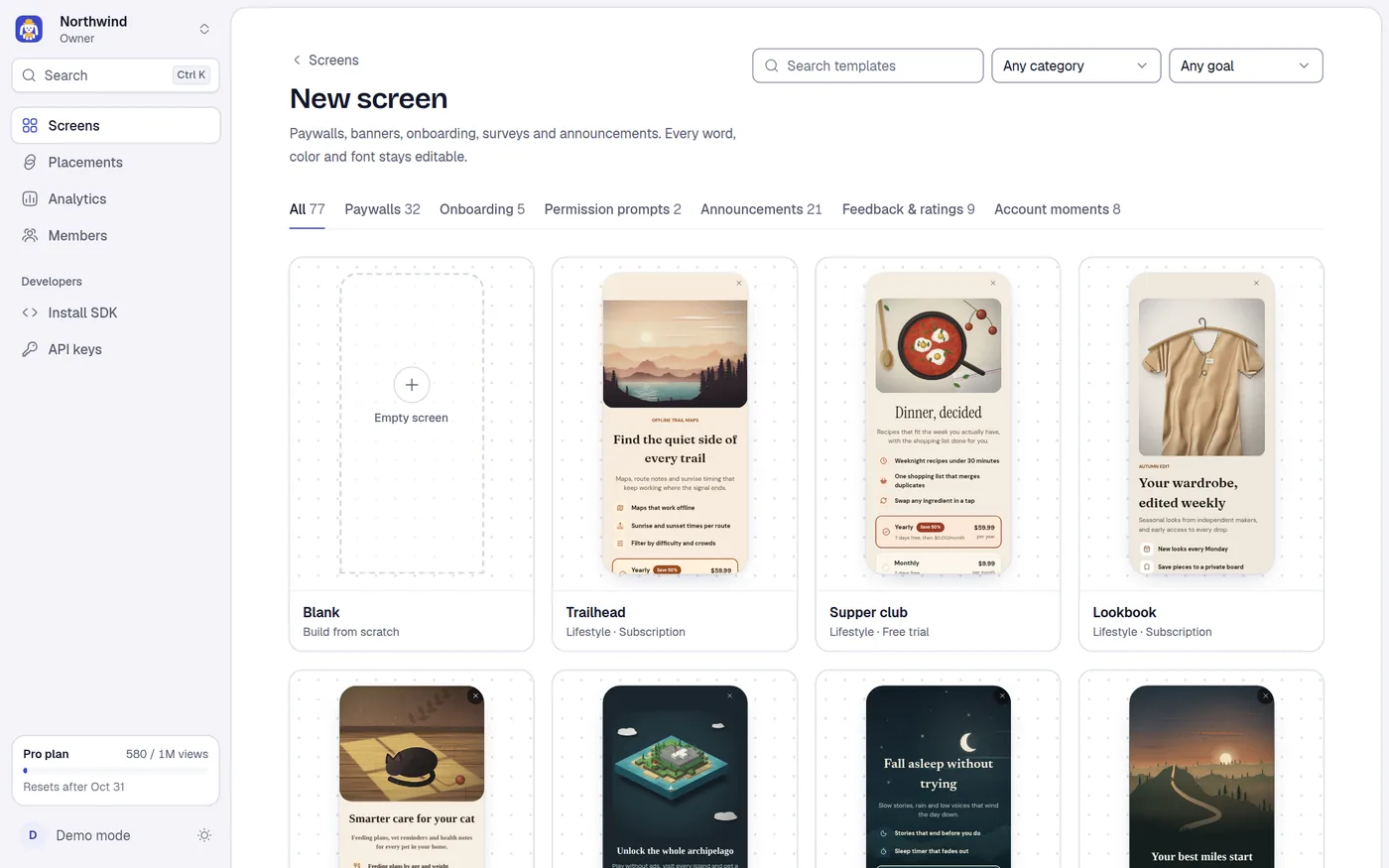
Start
You can begin in three places:
- The New screen button on the Screens page.
- New screen in the command palette (Ctrl+K or Cmd+K).
- The Pick a template button of the Get your first view checklist, or one of the three suggested template cards on an empty project.
All of them open the New screen page, which is the template gallery. A role of Viewer cannot create screens: the page shows a note, and the create button in the dialog is disabled.
Create from a template
Find a template
Browse or filter the gallery. Select a card to open it.
Check the preview
The dialog shows the screen at phone size. Use the Preview switch to see Light or Dark. The details panel lists:
| Detail | Meaning |
|---|---|
| Type | Paywall, Onboarding, Permission prompt, Announcement, Feedback or Account moment |
| Best as | Only on templates made for a format other than a popup. For example Banner or Slide-in. The note says to pick the format in Placements → Display, and that the screen has its own close button. |
| Category | The business area, such as Fitness or SaaS |
| Goal | Only on paywalls: Subscription, Free trial, Discount and so on |
| Screens | Only on flows: how many screens, in order |
| Fonts | The font families the template uses |
A short note under the details says what to expect: for paywalls, Prices are examples. Your site passes in the real ones.; for screens without plans, Buttons send an action ID to your site, which decides what happens next.
Name it
Type a Screen name. It starts with the template's name, and you can change it. The field's example is e.g. Welcome screen.
Create it
Select Use template. The button reads Creating… for a moment, then the editor opens on your new screen.
The new screen is a Draft. It does not show on your site until you publish it. The template itself never changes.
Create a flow
A few templates are flows: several screens made to work together, such as a short onboarding or a cancellation survey. For these, the name field is Flow name and the button reads Create 3 screens (the number is the screen count).
Miniwall creates every screen in the flow, each named with your flow name, a middle dot and the step name, for example Welcome · Goals. The buttons that continue the flow are already linked with the Go to screen action. The editor opens on the first screen. The placement you later create should point to that first screen.
If creating fails halfway, you see Failed to create screen and the dialog stays open.
Create a blank screen
Choose the Blank card (Build from scratch) as the first card in the gallery. It is only shown while no filter or search is active. The dialog explains: An empty screen. Add text, images, plans and buttons from the editor. Name it and select Create blank screen.
After you create
- Rename the screen on the Screens page, in the card menu.
- Edit it in the editor.
- Publish it, then point a placement at it.