Plans and billing
What each plan includes, how monthly views are counted, what happens at 80 percent and 100 percent, and what a plan change never deletes.
Miniwall plans are priced by views, never by a share of your revenue and never by your number of users. Your screens keep showing when the views run out. Use the Plans page to see your plan, how many views you have used this month, and what each plan adds.
Paid plans are not open for purchase in the dashboard yet. The Plans page says Paid plans open soon, and we will tell you here. Until then every project stays on its current plan. New projects start on Free.
Open the Plans page
Select the plan and usage meter at the bottom of the sidebar, or follow the See plans link in any usage notice or plan message. On a phone, search for Plans in the command palette. Every role can open the page.
The page has two panels.
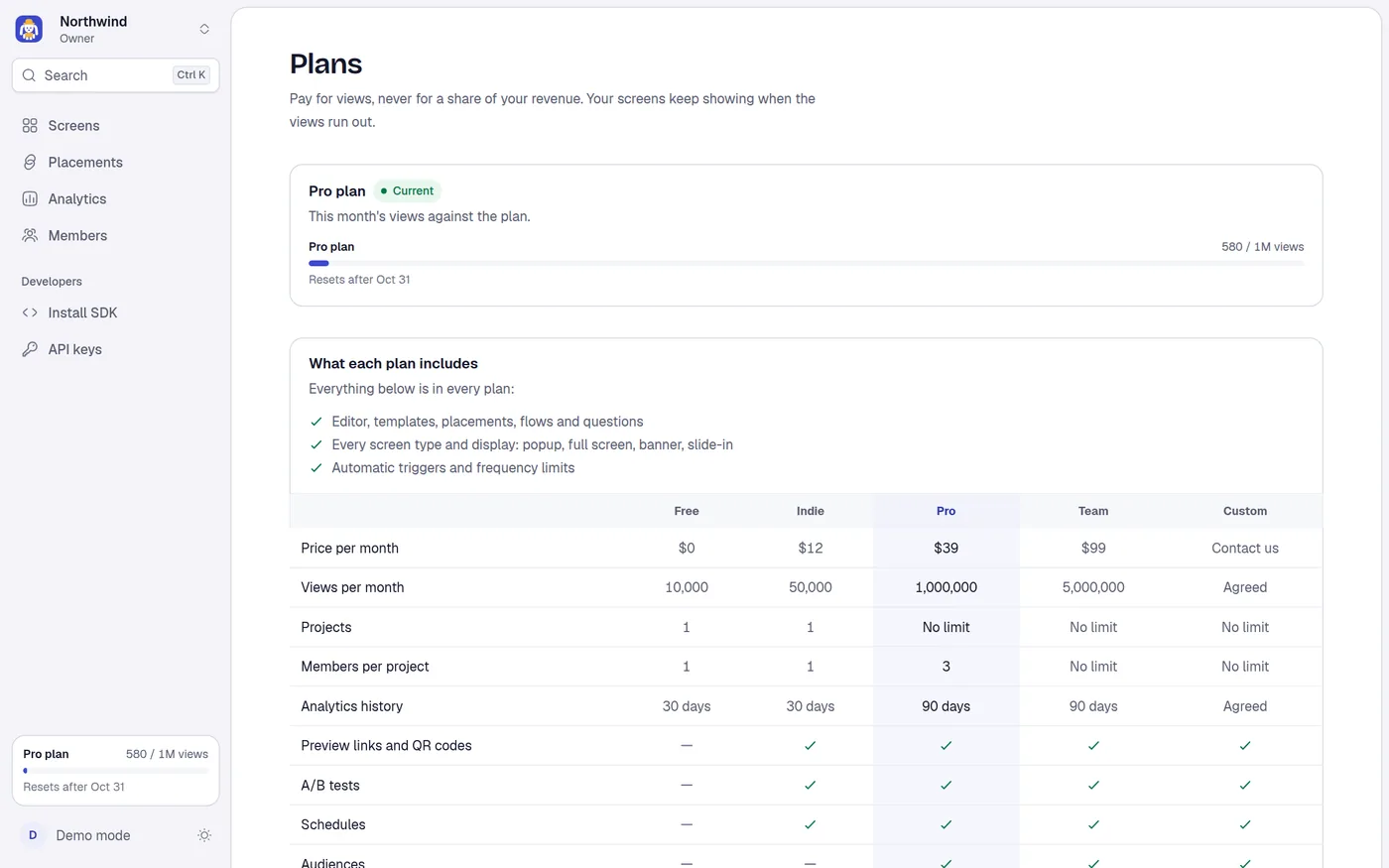
- Free plan (your current plan name) with a Current badge, and this month's views against the limit.
- What each plan includes, a comparison table with your plan highlighted.
Compare plans
| Free | Indie | Pro | Team | Custom | |
|---|---|---|---|---|---|
| Price per month | $0 | $12 | $39 | $99 | Contact us |
| Views per month | 10,000 | 50,000 | 1,000,000 | 5,000,000 | Agreed |
| Projects you can own | 1 | 1 | No limit | No limit | No limit |
| Members per project | 1 | 1 | 3 | No limit | No limit |
| Analytics history | 30 days | 30 days | 90 days | 90 days | Agreed |
| Preview links and QR codes | Yes | Yes | Yes | Yes | |
| A/B tests | Yes | Yes | Yes | Yes | |
| Schedules | Yes | Yes | Yes | Yes | |
| Audiences | Yes | Yes | Yes | ||
| Holdout | Yes | Yes | Yes | ||
| Allowed websites | Yes | Yes | Yes | ||
| More than one project | Yes | Yes | Yes |
Prices are in US dollars per month on monthly billing. Everything below is in every plan, so a free project is a real one:
- The editor, templates, placements, flows and questions.
- Every screen type and every display: popup, full screen, banner, slide-in, toast, side drawer and launcher.
- Automatic triggers (page load, delay, scroll, exit intent) and frequency limits.
The table on the page scrolls sideways on a phone, with the feature names kept in view. The marketing site shows the same plans.
Where plan limits show up
- Lock badges. A feature your plan does not include is still visible. It carries a badge with the plan that has it, with the tooltip Available on Indie and above (or the plan's name), and a See plans link. Selecting it opens the Plans page.
- When you try anyway. The action is refused with Upgrade to Indie to use A/B tests (or the plan and feature in question), and the message has a See plans button.
- Seats. The Members page shows used seats against the limit. See Members and roles.
- Projects. Creating a second project on Free or Indie asks you to upgrade to Pro. See Projects.
What counts as a view
A view is one screen shown on your site. A flow of three screens counts as three views. Opening the same screen again later counts again.
Not counted:
- Previews in the dashboard and shared preview links.
- A placement that shows nothing because of a frequency cap, an audience set to show nothing, or a holdout.
- A screen that fails to load.
The count is for the calendar month in UTC. It resets at the start of each month. The meter says Resets after and the last day of the month.
The usage meter and notices
The sidebar meter shows your plan name, for example Free plan, the views used and the limit, such as 1.2K / 10K views, a bar, and Resets after Oct 31. If you are over the limit it adds how many views over. The bar turns amber from 80 percent through the grace period, and red when paid features are paused.
| Stage | When | What you see | What happens |
|---|---|---|---|
| Normal | Under 80% | Meter only | Nothing changes |
| Warning | 80% and up | You've used 85% of this month's 10,000 views. and Your screens keep showing either way. | Nothing changes |
| Grace | 100% reached | You've used this month's 10,000 views. and Everything keeps running until the date. After that, paid features pause until next month or a bigger plan. Your screens keep showing. | Everything keeps working for 7 days |
| Paused | After the 7 days, still over | Paid plans: This month's 10,000 views ran out. and Paid features are paused until next month or a bigger plan. Your screens keep showing. Free: You cannot publish new versions or add placements until next month or a bigger plan. Your screens keep showing. | See below |
| New month | The count starts again | Notice disappears | Everything opens again |
Every notice also says The count resets after the date, and has See plans.
What pauses
Your published screens always keep showing, on every plan and in every stage.
On a paid plan, after the grace ends the paid features pause: A/B tests, schedules, audiences, holdout, preview links and adding allowed websites. Paused means they stop applying and cannot be added or changed. Your data stays. While A/B tests are paused, everyone sees screen A. While schedules are paused, the placement shows its own screen. While audiences are paused, everyone gets the placement's screen.
On Free, which has no paid features, a project that stays over its limit after the grace cannot publish new versions or add placements. Existing screens keep showing. Saving drafts and editing still work.
If you move to a bigger plan, everything opens at once. The month's count stays, but the pause is lifted.
When a plan goes down
If a project moves to a smaller plan, the dashboard never deletes anything you made.
- Running A/B tests pause, and the placement shows its screen A. The test and its data are kept.
- Schedules stop applying and stay saved.
- Audiences and holdout are ignored and stay saved.
- Extra projects or members above the new limit keep working. You just cannot add more.
- Screens, placements and versions are never deleted, and the default screen of a placement never stops showing.
Going back up brings everything back.
Billing
Payment for Miniwall plans is not available in the dashboard yet. There is no checkout, invoice or upgrade button. When billing opens, the plan will belong to the project and the payment to its owner, and the Plans page will tell you.
This is separate from your own product's payments. Miniwall never processes the payments of your visitors. See How it works.