API keys
Create, copy and revoke the public keys your website uses to load published screens.
Your website uses a public key to load published screens and send view events. The API keys page lists your project's keys and lets an admin create and revoke them. The Allowed websites panel for the same keys is on this page too; it has its own guide: Allowed websites.
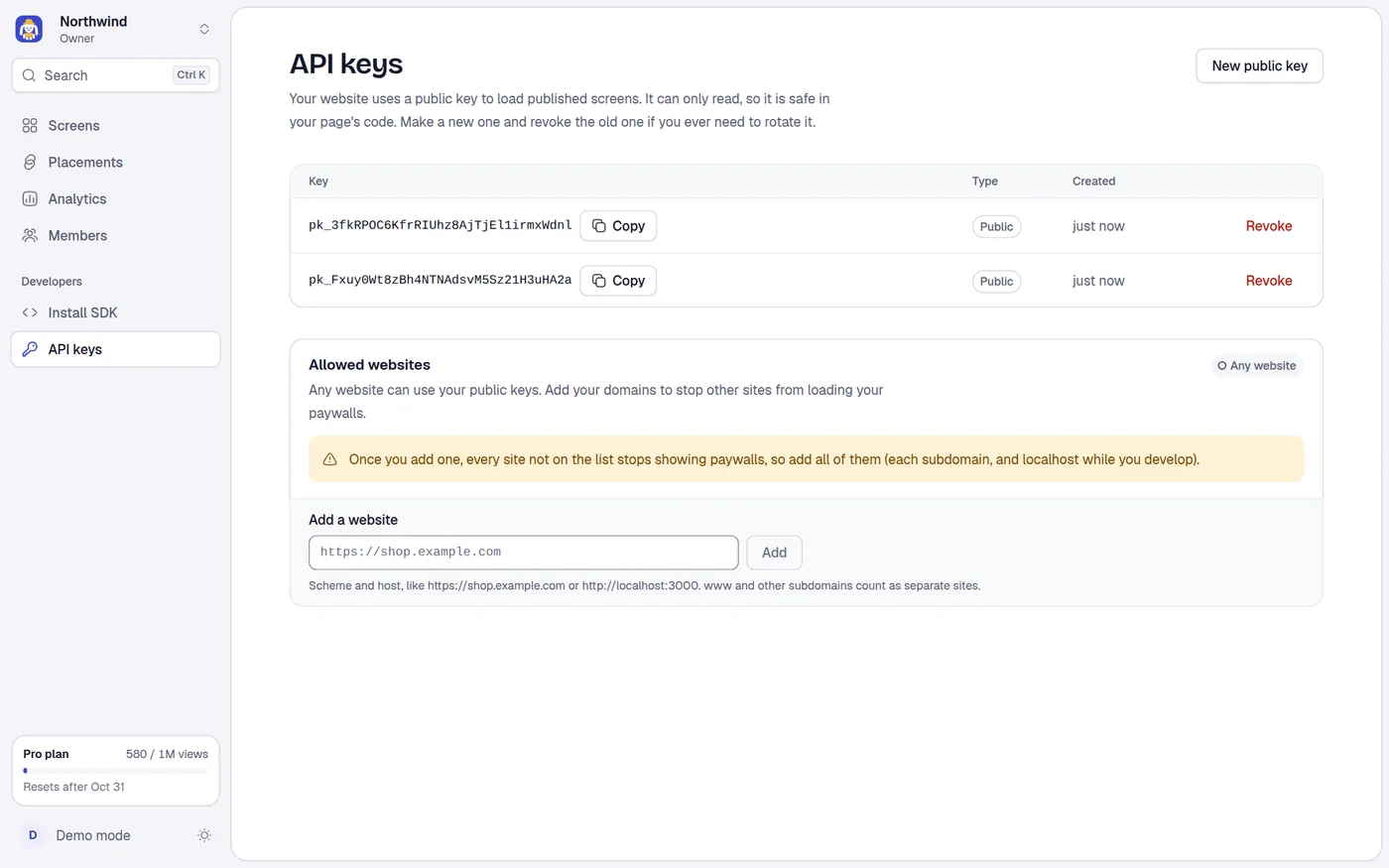
The page says: Your website uses a public key to load published screens. It can only read, so it is safe in your page's code. Make a new one and revoke the old one if you ever need to rotate it.
What a key looks like
A public key starts with pk_, followed by a long random string. A new project already has one. The list shows the full key, so you can copy it at any time.
The list has three columns, and on a phone each key is a small card:
| Column | Meaning |
|---|---|
| Key | The full public key, with a Copy button |
| Type | Public, Secret or Revoked |
| Created | How long ago the key was made |
Secret keys (starting sk_) have no use yet, because no server API accepts them. The dashboard does not create them. If your project has an older secret key, it stays in the list showing only its first characters, so you can revoke it.
Create a key
Select New public key. A toast says Public key created, and the key appears at the top of the list. The first time, on an empty list, the button in the middle of the page reads Create a public key. An empty list says No keys yet and Create a public key; the install snippet fills it in for you.
You can have several active public keys at once. The Install SDK page uses the newest active one.
Copy a key
Select Copy next to the key. On a phone the button sits under the key. You can also copy the key from the Install page.
Revoke a key
Use Revoke when a key leaked or when you rotate keys.
- Create the new key first and put it in your site.
- Select Revoke next to the old key.
- In the dialog Revoke followed by the first characters of the key, choose Revoke key. A toast says Key revoked.
Revoking takes effect immediately and cannot be undone. Anything using the key stops working, because the API answers Missing or invalid public key. A revoked key stays in the list, struck through, with a Revoked badge, so you can see its history.
If it is the last active public key, the dialog warns you: This is your only public key. Every website using it stops showing paywalls right away. Create a new key and put it in your site first. This cannot be undone.
Rotate a key without downtime
- Select New public key.
- Deploy your site with the new key in
UIKit.configure. - Check Analytics or the Install status to see views arriving.
- Revoke the old key.
Who can do what
| Action | Role needed |
|---|---|
| See the list and copy keys | Viewer |
| New public key | Admin |
| Revoke | Admin |
Below admin, the New public key button is disabled with a note under the title, and Revoke is hidden. See Members and roles.
Loading and errors
While keys load you see a placeholder row. If loading fails, you see an error with Try again. If creating or revoking fails, a toast says Could not create the key or Could not revoke the key with the reason.