Template gallery
Browse, filter and search the template gallery, and open a template to see it in light and dark.
The gallery is the New screen page. Use it to find a starting point for a screen. Everything about the gallery, including your search, filters and the template you have open, is stored in the page address, so you can reload the page or send the link to a teammate and land on the same view.
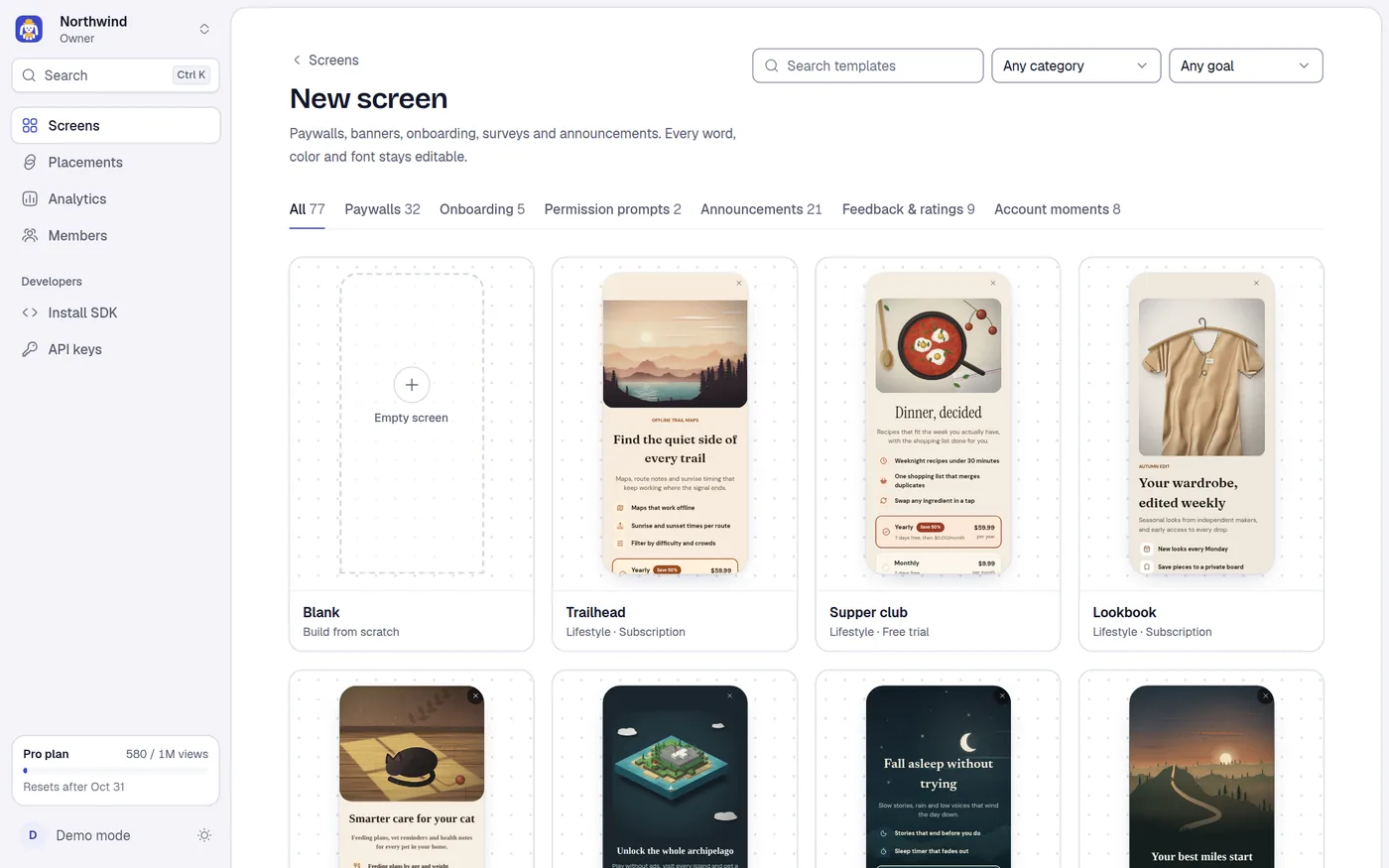
Find a template
Screen types
A row of tabs sits under the title, each with the number of templates it holds:
| Tab | What it holds |
|---|---|
| All | Every template |
| Paywalls | Screens that sell plans |
| Onboarding | Welcome, goal choice and feature introductions |
| Permission prompts | A friendly explanation before the browser asks for a permission |
| Announcements | What's new, and new features |
| Feedback & ratings | Rating requests and surveys, including cancellation surveys |
| Account moments | Trial ending soon, thank-you after a purchase and similar |
Category
The Category menu defaults to Any category. Each option shows its name and, in brackets, how many templates it holds. The list follows the screen type you picked, so a category never leads to an empty page. The categories are:
Basics, Fitness, Meditation & sleep, Education, Productivity, Photo & video, Finance, AI tools, News & media, SaaS, Sales & seasons and Lifestyle.
Goal
The Goal menu defaults to Any goal. It appears only on All and Paywalls, because other screens have no sales goal. The goals are Subscription, Free trial, Discount, Win-back, Lifetime deal, Credits and Feature gate.
Search
Search templates matches a template's name, description, category, goal, type and its best-fit format, ignoring capital letters. The text you type has to appear in at least one of those fields.
Clear filters
If nothing matches, the page says No templates match: Try another word or category, or start from a blank screen. Select Clear filters to reset the tabs, menus and search.
Read a card
Each card shows the template at phone size, its name, and a short line:
- For paywalls: the category and goal, for example Fitness · Free trial.
- For other screens: the type and category, for example Onboarding · Fitness.
Some cards also carry a Best as chip. It means the template was made for a format other than a normal popup, so you should show it that way:
| Chip | Format |
|---|---|
| Best as: Banner | A strip pinned to the top or bottom of the page |
| Best as: Slide-in | A compact card in a corner |
| Best as: Toast | A small note that fades by itself |
| Best as: Side drawer | A tall panel that slides in from the side |
| Best as: Launcher | A button on the page that opens the screen |
These cards are drawn on a sketched page, the way the SDK places them. You set the format on the placement, in Display. The screen has its own close button; the SDK does not add one.
When no filter or search is active, the first card is Blank, labelled Build from scratch.
Open a template
Select a card. A dialog opens with a large preview, a Preview switch for Light and Dark, the details panel, and a name field. The light or dark choice is saved in the address too. Create the screen from there: see New screen.
On a phone
Cards show two to a row, and the preview dialog scales down to fit the screen.