Members and roles
Invite teammates, choose what each role can do, change roles, transfer ownership and manage seats.
Use the Members page to bring teammates into a project and decide what each of them can change. Everyone in a project has exactly one role.
Roles at a glance
| Role | In one line |
|---|---|
| Owner | Full control, including ownership. Exactly one per project. |
| Admin | Manages members, API keys and allowed websites, plus everything an editor does. |
| Editor | Creates, edits and publishes screens and placements. |
| Viewer | Views screens, placements and analytics. Cannot change anything. |
Roles rank in this order: Viewer, Editor, Admin, Owner. A higher role can do everything the lower ones can.
What each role can do
| Action | Viewer | Editor | Admin | Owner |
|---|---|---|---|---|
| See screens, placements, analytics, usage, install code and the member list | Yes | Yes | Yes | Yes |
| See API keys (public keys can be copied) | Yes | Yes | Yes | Yes |
| Create, rename, duplicate and edit screens | Yes | Yes | Yes | |
| Save drafts, publish and roll back to an earlier version | Yes | Yes | Yes | |
| Upload and delete images | Yes | Yes | Yes | |
| Create, change and turn off preview links | Yes | Yes | Yes | |
| Create and change placements: screen, display, audiences, holdout | Yes | Yes | Yes | |
| Start and end A/B tests, add and remove schedules | Yes | Yes | Yes | |
| Delete a screen | Yes | Yes | ||
| Delete a placement | Yes | Yes | ||
| Create and revoke API keys | Yes | Yes | ||
| Add and remove allowed websites | Yes | Yes | ||
| Invite, resend, revoke invites, remove people, change roles | Yes, with limits | Yes | ||
| Transfer ownership | Yes | |||
| Leave the project | Yes | Yes | Yes | No, transfer first |
The limits on what an admin may do to people:
- An admin can invite, change and remove only editors and viewers.
- An admin cannot invite an admin, make anyone an admin, or touch another admin or the owner.
- Only the owner can do those.
- Nobody can change their own role. The owner cannot be removed or demoted.
How locked actions look
The dashboard shows what it can that you cannot use, and tells you why.
- A main button, such as New screen, Publish, Save Draft or New public key, is shown but disabled. A tooltip and a note under the page title say Your role (Viewer) can't do this. Ask an admin or the owner. A small chip such as Needs Admin may sit next to it.
- Buttons on a row, such as Remove, Revoke or Delete, are hidden when your role cannot use them.
- A viewer who opens the editor sees View only. Nothing saves and Save Draft and Publish are disabled.
If your role changes while you are working, the next change you try shows a toast: You don't have permission. This needs the Admin role or higher. You are Viewer. Your unsaved edits stay on screen. The dashboard checks your role on every request, so a change applies right away.
The Members page
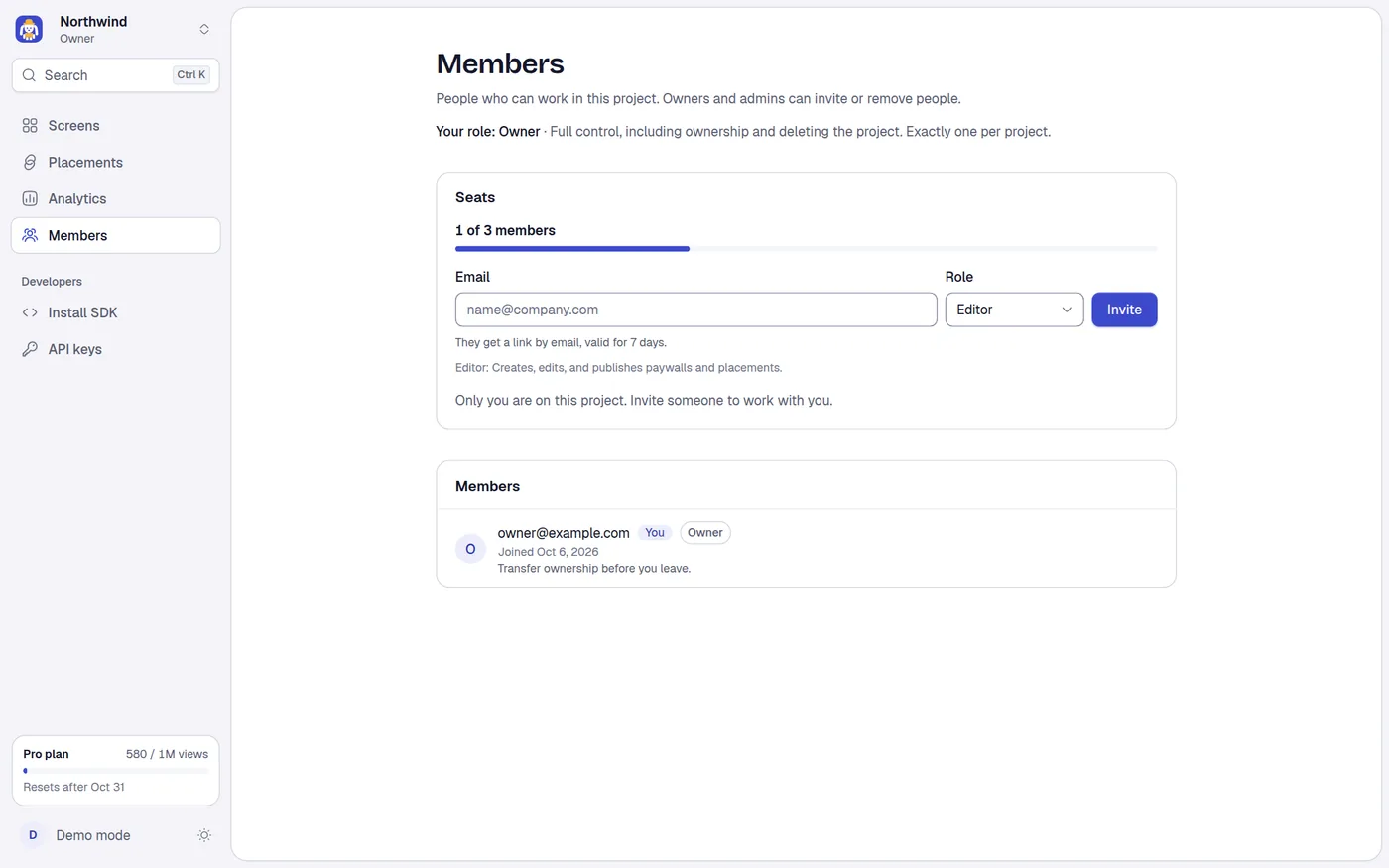
The page opens with your role: Your role: Editor, followed by what the role can do.
Seats
The Seats panel shows how many seats are used, for example 2 of 3 members, and how many invitations are waiting.
- A seat is a member or a pending invitation. Every role uses a seat, including Viewer.
- Limits: Free 1, Indie 1, Pro 3, Team and Custom no limit. Plans are in Plans and billing.
- When all seats are taken, the invite form is replaced by a note. On a one-seat plan it says Your plan includes 1 member and offers Compare plans. On Pro it says All 3 seats are taken. Remove a member or revoke an invitation to free a seat.
- If your plan goes down, people and invitations you already have stay. You just cannot add more.
Invite someone
Editors and viewers do not see the form. They see You can't invite or remove people. Ask an admin or the owner.
Type the person's Email. The hint says They get a link by email, valid for 7 days.
Choose the Role. It starts as Editor. An owner can pick Admin, Editor or Viewer. An admin can pick Editor or Viewer. A line under the form describes the chosen role. You cannot invite an owner.
Select Invite (Inviting… while it sends). A toast says Invite sent to the address.
If the email cannot be sent, the invitation is still saved. A notice says Invite saved, but the email did not go out. with a link and Copy invite link. Send that link to the person yourself.
Messages you may see:
| Message | Why |
|---|---|
| Enter a full email address, like name@company.com. | The address is not valid. |
| The address is already a member of this project. | They are in the project. |
| The address already has a pending invite. Resend it from the list below. | There is already an open invitation. |
| This project has sent 20 invites today. Try again tomorrow. | The daily limit for a project is 20 invitations. |
| No seat left: Someone else used the last seat. Remove a member or revoke an invite first. | The seat limit was reached. |
The member list
Members are listed owner first, then admins, editors and viewers, each group in the order they joined. Each row shows the email, a You chip on your own row, the join date, and what you can do:
| Control | Shown when |
|---|---|
| A role picker | You may change this person's role. Changing it saves at once. A toast says that the person is now the new role. |
| Make owner | You are the owner and the row is another person |
| Remove | You may remove this person |
| Leave | The row is yours and you are not the owner |
Your own row and the owner's row show a plain role label, never a picker. The owner's own row says Transfer ownership before you leave.
If a role change fails, the picker goes back to the old value and the row shows Could not change the role. Check your connection and try again.
Pending invitations
Admins and the owner see a Pending invites list: email, role and Expires in N days or Expires today. Each row has two buttons if you may act on it:
- Resend creates a new link, restarts the 7 days, and makes the old link stop working.
- Revoke cancels the invitation. The link stops working and the seat frees up.
To change the role on an invitation, revoke it and invite again.
Remove or leave
- Remove opens a dialog titled Remove followed by the person's email, and says They lose access to this project right away. Their work stays here, and you can invite them again. Confirm with Remove member.
- Leave opens Leave this project? and says You lose access right away. The owner can invite you again. Confirm with Leave project. After leaving, you go to your other projects.
Transfer ownership
Only the owner sees Make owner on other people's rows.
- Select Make owner on the person's row.
- The dialog title reads Transfer the project name to the person's email. It says They become the owner and you become an admin. Only the new owner can undo this. Type the project name to confirm.
- Type the exact project name in Project name. The match is exact, including capital letters. Spaces at the start or end are ignored. The button stays disabled until it matches.
- Select Transfer ownership. A toast says that the person is now the owner. Your role becomes Admin.
The new owner must be within their own plan's project limit. If not, the dialog says That person is at the project limit of their plan. They need to upgrade first. If someone else changed ownership while you worked, you see Ownership changed while you were working. Reload and try again.
Accept an invitation
- The person receives an email, name invited you to join project on Miniwall, with an Accept invite button, the link in full, and the date it expires. The email asks them to sign in with the address it was sent to.
- They open the link. If they are not signed in, the sign-in page says Sign in or create an account to see your invitation. Use the email address the invite was sent to. They use the same email address the invitation was sent to, and then land back on the invitation.
- They see Name invited you to join Project, You will join as Role and a short description of the role. They choose Accept invite or Decline.
- On accept, a toast says You joined the project name and they land on its Screens page. On decline, they see You declined the invite.
Invitations last 7 days and work once.
| Message | What happened |
|---|---|
| This invite has expired | Invites last 7 days. Ask the owner to send a new one. |
| This invite was already used | Someone has accepted it. If it was you, open the project from your projects. |
| This invite was revoked | The owner cancelled it. |
| This invite link isn't valid | The link is incomplete or wrong. Check that you copied all of it. |
| This invite is for another email | You are signed in with a different address. Use Sign out, then sign in with the invited one. |
| The project has no free seat | The plan has no room right now. Ask the owner to free a seat, then open the link again. |
If an invitation was sent as Admin by a person who was no longer the owner when it was accepted, the new member joins as Editor instead. The owner can raise the role afterwards.