Screens
The Screens page - every screen in your project, its publish status, and how to rename, duplicate, share, download and delete it.
The Screens page is the home of a project. It lists every screen as a live thumbnail with its publish status. Use it to open a screen in the editor, start a new one, and manage the ones you have. You land here when you open a project.
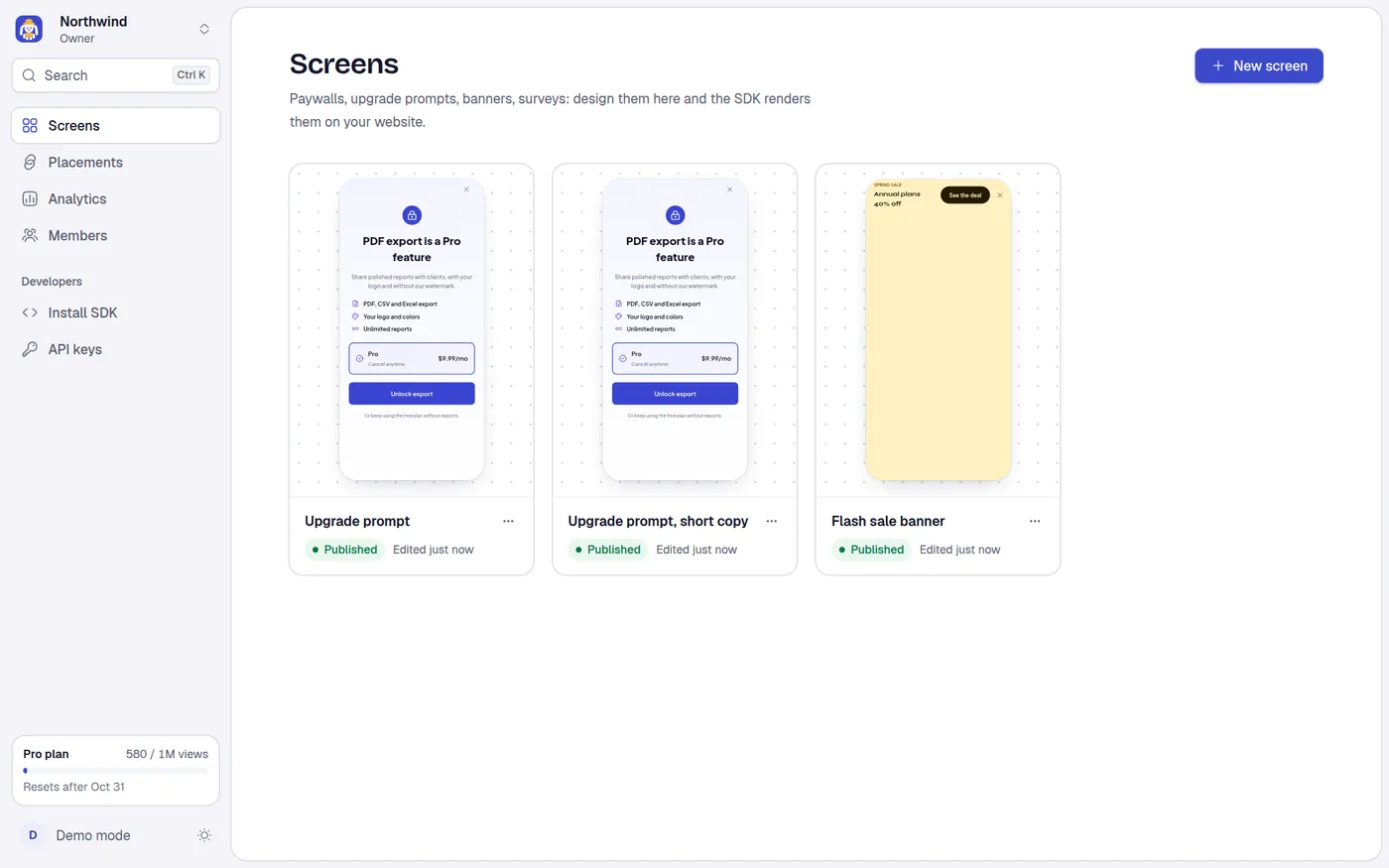
The list
Each card shows:
- A live thumbnail of the screen. Select it, or the name, to open the editor.
- The screen name.
- A status badge.
- When it was last edited, for example Edited 5 minutes ago.
- A menu button, Actions for followed by the screen name.
Status badges
| Badge | Meaning |
|---|---|
| Draft | Never published. Your site cannot show it yet. |
| Published | Live, and the draft matches what is live. |
| Unpublished changes | Live, but you saved changes since. Hover the badge to read: Your site shows the last published version until you publish again. |
Card menu
| Item | What it does | Who can use it |
|---|---|---|
| Open editor | Opens the screen in the editor. | Everyone |
| Rename | Opens Rename screen with a Name field. Save with Save. | Editor and above |
| Duplicate | Makes a copy called the original name plus (copy), as a new draft. A toast says Created and the new name. | Editor and above |
| Share preview | Creates a link and QR code to see the latest draft on a phone. See Preview and sharing. | Editor and above. On the Free plan it shows a lock badge and opens the Plans page. |
| Download JSON | Saves the screen's JSON as a file named after the screen. It exports the published version, or the draft if the screen was never published. | Everyone |
| Delete | Deletes the screen. See below. | Admin and above |
Viewers see Open editor and Download JSON only.
Names can be up to 120 characters.
Delete a screen
Delete behaves in one of two ways, depending on whether the screen is in use.
The screen is not in use. It disappears at once, and a toast reads Deleted and the name, with an Undo button. You have 8 seconds. After that the deletion is final.
The screen is in use. A dialog titled Delete "name"? It is in use lists each place that depends on it, and ends with This cannot be undone. Choose Delete anyway to confirm, or cancel. The lines you may see:
| Line | What happens when you delete |
|---|---|
| The placement key shows it | That placement will show nothing. |
| It is B in the A/B test on a placement | The test cannot finish. |
| An audience on a placement shows it | Those visitors will see nothing. |
| It is scheduled on a placement | The schedule is removed. |
| Another screen has a Go to screen button to it | That button will do nothing. |
Deleting a screen removes its versions and its preview link. Placements that pointed to it are left empty. Check the dialog before you confirm.
Empty project
A new project shows the Get your first view checklist and, under Start from a template, three suggested template cards. Select one to open it in the gallery.
If the checklist is not showing, the empty state reads No screens yet: Start from a template, publish it, and your site shows it with one tag. with a New screen button.
The Get your first view checklist
The checklist appears on the Screens page until your site shows its first screen. It shows how many of four steps are done, for example 1 of 4, and a button for the current step.
| Step | Done when | Button |
|---|---|---|
| Make a screen | The project has at least one screen | Pick a template |
| Publish it | A screen is published | Open the editor |
| Add it to your site | Your site has shown a screen | Show me how, which opens Install SDK |
| See your first view | Your site has shown a screen | Check now |
Steps tick by themselves from your project's data. You cannot tick them by hand. While no view has arrived, the page checks again every 10 seconds.
When the first view arrives while you have the page open, the checklist turns into a message: Your site just showed its first screen, with how long it took from creating the project, plus See analytics and Dismiss. After that the checklist is gone for good.
Loading and errors
- While the list loads you see grey placeholders where the cards will be.
- If it cannot load, the page shows an error with a Try again button.
- A viewer sees a note under the title: Your role (Viewer) can't do this. Ask an admin or the owner. and the New screen button is disabled.