Placements
Create placements, point each one at a screen, and open its detail page to control how, when and to whom the screen shows.
A placement is a named slot on your site, like upgrade_button or pricing. Your site asks the SDK for the placement by its key. You decide in the dashboard which screen the placement shows, how it appears, when it appears and who sees it. When you change any of that, your site updates without a deploy.
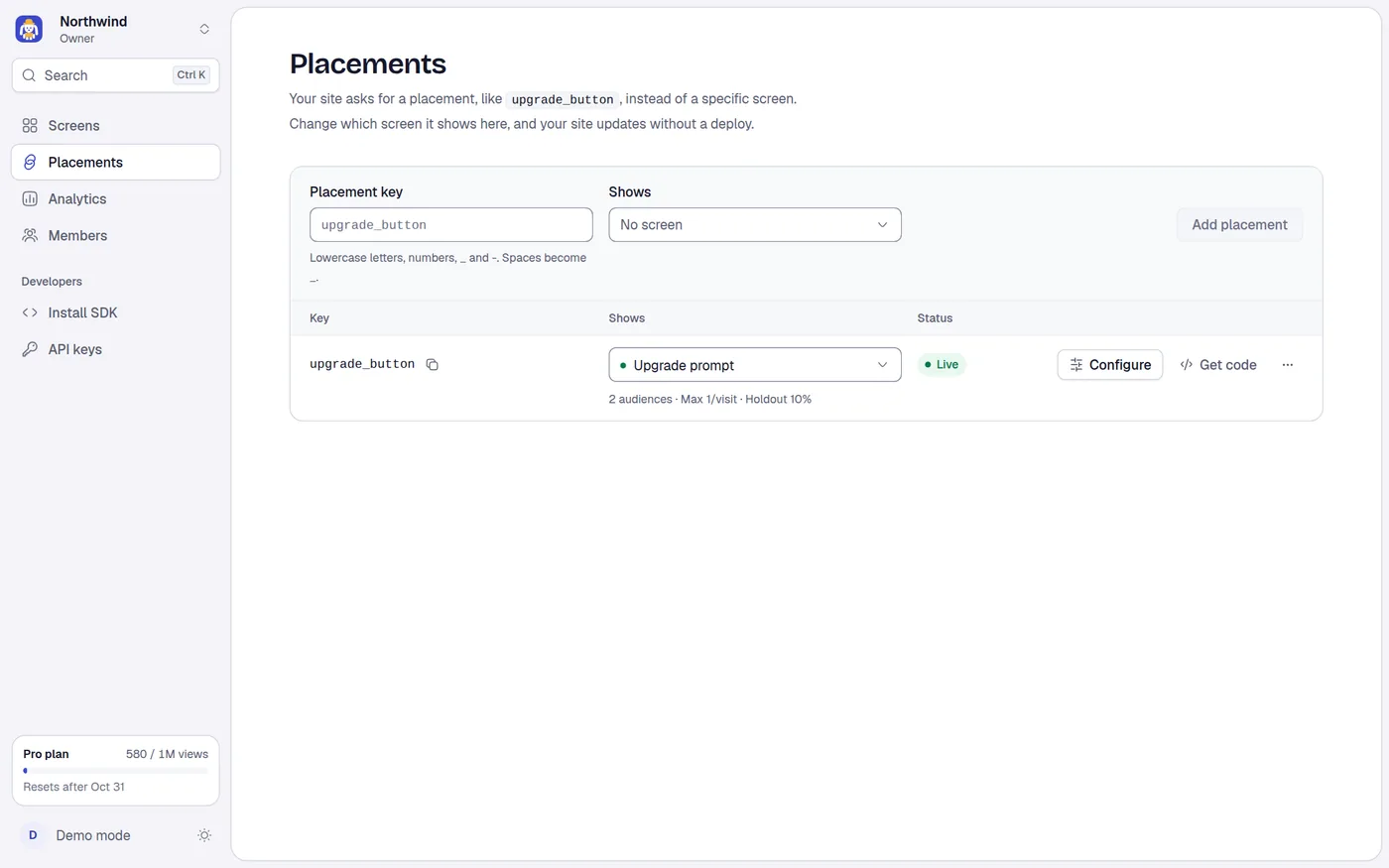
Use the Placements page to:
- add a placement and point it at a screen,
- switch the screen behind a placement,
- see at a glance what each placement does and whether it is live,
- open a placement's detail page to configure it,
- copy a key or get the SDK code for it.
Add a placement
Open Placements in the sidebar.
In the Add a placement strip at the top, type a Placement key, for example upgrade_button.
The key can use lowercase letters, numbers, _ and -. As you type, capitals become lowercase, spaces and dots become _, and any other character is dropped. A key can be up to 64 characters and must be unique in the project. If the key exists, the field shows "upgrade_button" is already a placement. Pick another key.
Pick a screen in Shows. The menu lists every screen in the project. A screen that is not published has a Draft tag. No screen leaves the placement empty for now.
Select Add placement. A toast says Added "upgrade_button". Your site asks for it by this key. and offers Get code, which opens the Install SDK page for that screen.
Adding, editing and switching screens needs the Editor role or higher. Deleting a placement needs Admin or higher. If your role is too low, the controls are disabled and the page says why. See Members and roles.
On the Free plan, once a month's views run out and the 7 days of grace are over, you cannot add new placements until next month or a bigger plan. Placements that already exist keep showing their screens. See Plans and billing.
Read the list
Each row is one placement. On a phone each row is a card.
| Column | What it shows |
|---|---|
| Key | The placement key. Select it to open the detail page. The copy button next to it copies the key. |
| Shows | The screen the placement shows, as a menu. Under it, a one-line summary of the setup (see below). |
| Status | A badge with the state of the placement right now. |
| Actions | Configure, Get code and a ... menu. |
Status badge
The badge reads the first rule that applies, in this order:
| Badge | When |
|---|---|
| Scheduled | A schedule is in force right now. |
| A/B test | An A/B test is running. |
| Shows nothing | No screen is chosen. |
| Live | A published screen is chosen. |
| Screen not published | The chosen screen has never been published, so your site has nothing to show. |
Summary line
The line under the screen menu joins the parts of the setup with a dot. It lists, in order: the display format and its position or size, the trigger, the pages, the priority, then the audience summary. For example Banner · top · After 10 s · /pricing · 2 audiences · Max 3/day · Holdout 10%. Select it to open the Screen & display tab. A placement with nothing set has no summary line.
| Part | Examples |
|---|---|
| Format | Popup, Popup · small, Banner · bottom, Slide-in · bottom left · large, Toast · top · 10 s, Side drawer · left, Launcher |
| Trigger | On page load, After 10 s, Scroll 50%, Exit intent |
| Pages | /pricing, /pricing, /blog/*, 3 pages (three or more) |
| Priority | Priority 5 (only when above 0) |
| Audience | 2 audiences, Max 3/day, Holdout 10% |
Switch the screen behind a placement
Change the Shows menu on a row (or the Screen menu on the Overview tab). The change goes live at once. A toast says "upgrade_button" now shows Pro upgrade on your site and has an Undo button that sets the old value back.
The menu is disabled while an A/B test runs on the placement, because the current screen is side A of the test. End the test first.
Your site picks up the change within about a minute. The SDK caches the last copy it saw and checks for a new one on every page load.
Configure a placement
Select Configure on a row, or the key itself. The detail page opens with six tabs:
| Tab | What you set |
|---|---|
| Overview | The one-line summary, the screen, what needs attention, the setup at a glance. |
| Screen & display | Format, position, size, trigger, pages, priority. |
| Audience | Audiences, frequency limit, holdout. |
| Experiment | An A/B test between two screens. |
| Schedule | Another screen for a period of time, like a sale. |
| Results | The numbers for the A/B test and the holdout. |
Older links of the form /placements?display=ID still work: they redirect to that placement's Screen & display tab.
Get code
Get code opens Install SDK with the placement's screen selected. The snippets use { placement: 'your_key' } as the source. See the Web SDK quickstart.
Copy a key and delete a placement
The ... menu on a row has:
- Copy key: copies the key to the clipboard.
- Delete (Admin and above): removes the placement from the list and shows a toast
Deleted "upgrade_button". Sites asking for it will stop showing a paywall.with Undo. The delete is sent after 8 seconds. Select Undo within that time and nothing is deleted. If you close the tab inside the 8 seconds, the placement stays.
Deleting a placement does not delete the screens it showed. Its A/B tests and schedules go with it. Sites that still ask for the key get a "Placement not found" error from the SDK (see Errors).
Empty state and demo mode
With no placements the page says No placements yet and offers See the SDK snippet.
In the demo (no account, data kept in your browser) the list works, but the detail page shows only the Overview and Screen & display tabs. Audience, Experiment, Schedule and Results need the API.