Audience
Show different screens to different visitors, limit how often a visitor sees a placement, and hold some visitors back to measure its effect.
Use the Audience tab to control who sees a placement and how often. It has three parts:
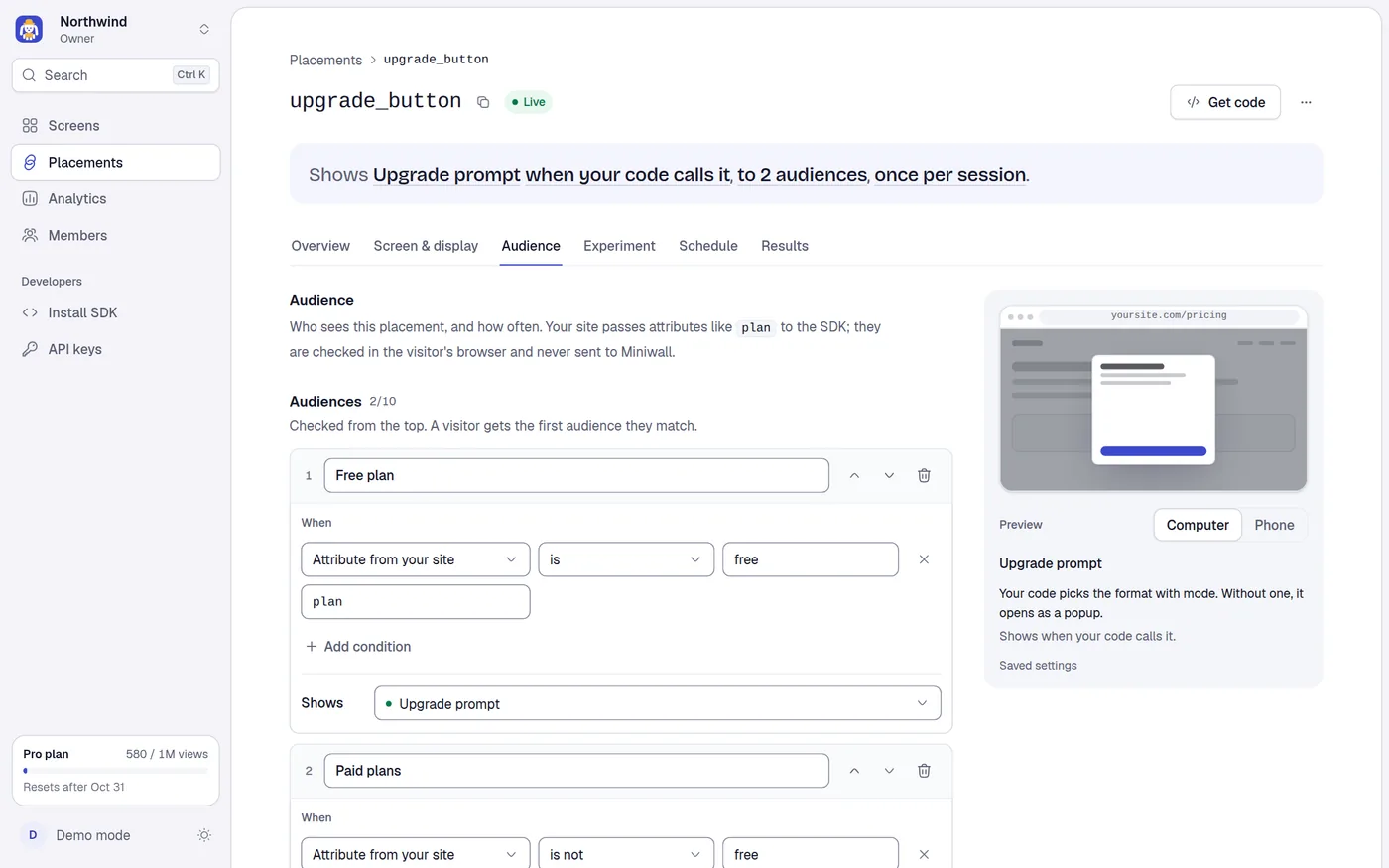
- Audiences: rules that send matching visitors to a specific screen, or to nothing.
- Frequency: a limit on how many times one visitor sees the placement.
- Holdout: a share of visitors who see nothing, so you can measure what the placement adds.
All three are checked in the visitor's browser. Your site passes facts about the visitor to the SDK (for example plan: 'free'). Those facts are compared with your rules in the browser and are never sent to Miniwall. Miniwall stores only the rules you write here.
Audiences and Holdout need the Pro plan or above. Frequency is on every plan. On other plans the tab opens, shows a lock and a See plans link, and the controls that need the plan are disabled. Rules you saved earlier stay saved but stop applying if the plan lacks the feature. See Plans and billing.
This tab is a form with a draft and one Save for all three parts. See drafts and the save bar.
How a visitor is decided
For a placement loaded by key, the SDK works through these steps in order and stops at the first that decides:
- Frequency. If the visitor has already seen the placement the maximum number of times, show nothing. The result is skipped with reason
frequency_cap. - Audiences. Go down the audience list. The first audience whose conditions are all true decides: it shows its screen, or nothing. If it shows nothing the result is skipped with reason
audience. - Default screen. If no audience matched, the placement's own screen is used. A schedule in force replaces it. An A/B test splits only these visitors, and a schedule in force pauses the test.
- Holdout. If this visitor falls in the held-out share, show nothing. The result is skipped with reason
holdout. - Otherwise the screen opens.
An audience's screen is shown exactly as it is. The A/B test never applies to a visitor who matched an audience.
When the SDK skips a placement, presentPaywall resolves with { outcome: 'skipped', reason }, mountPaywall returns a handle with shown: false, and onSkip is called. See Targeting attributes.
Audiences
An audience is a named group of visitors defined by conditions.
Add an audience
Select Add audience. A card appears with its name field focused. You can have up to 10 audiences.
Type a name, up to 40 characters, for example Paid users.
Set the conditions (below). Select Add condition for more. An audience can have up to 10 conditions and all of them must be true. With more than one, the card says When all of these are true.
In Shows, pick a screen or Nothing (skip this placement). Pick Nothing for visitors who should never see the placement, such as people who already pay.
Select Save.
With no audiences the tab says Everyone sees this placement.
Order
Audiences are checked from the top and the first match wins. Use the up and down arrows on a card to reorder, and the bin to remove one. Under the last audience a fixed row Everyone else shows the placement's own screen (with (A/B test) after the name while a test runs).
If an audience points at a screen that is not published (or was deleted), the card says Publish NAME first. Until then this audience is skipped and falls through to the next one. The delivery response leaves such an audience out.
Conditions
Each condition has three controls: what to check, a comparison, and a value.
| What to check | Comparisons | Value |
|---|---|---|
Attribute from your site (with an attribute name, such as plan) | is, is not, contains, starts with, is more than, is at least, is less than, is at most, is set, is not set | Text or a number. Not needed for is set and is not set. |
| Language | starts with, is, is not | Such as vi or en-US |
| Device | is, is not | Phone, Tablet or Computer |
| Page path | is, is not, starts with, contains | Such as /pricing |
| Times seen | is less than, is at most, is more than, is at least, is | A number |
| Days since first visit | is at least, is more than, is less than, is at most, is | A number |
What each one reads in the browser:
| Check | Source |
|---|---|
| Attribute from your site | The value your site passes in attributes (or setAttributes). Condition field user.NAME. The name must start with a letter, then letters, numbers or _, up to 40 characters. |
| Language | The locale option of the call if you pass one (exactly as you pass it, such as vi_VN), otherwise navigator.language (such as vi-VN). |
| Device | mobile, tablet or desktop, guessed from the browser's user agent. An iPad, an Android device without a phone user agent, or a Mac with a touch screen counts as a tablet. |
| Page path | location.pathname. |
| Times seen | How many times this browser has been shown this placement. Each screen of a flow counts as one. |
| Days since first visit | Whole days since the first time this browser evaluated such a condition (0 on the first day). Stored in localStorage under uikit:first-seen. |
How comparisons work:
- Text comparisons ignore upper and lower case. is and is not compare text:
trueandfalsefrom your site are compared as the wordstrueandfalse. - is not is also true when the value is missing.
- A missing value (not passed,
null, or an empty string) makes every other comparison false. is not set is then true and is set is false. - Number comparisons (is more than, is at least, is less than, is at most) convert both sides to numbers. If either side is not a number, the condition is false.
- Times seen and Days since first visit only accept numbers. Language with starts with
vimatchesvi,vi-VNandvi_VN. - A value can be up to 200 characters.
Examples:
| Goal | Audience |
|---|---|
| Hide the paywall from paying users | Name Paid users. Attribute from your site plan is pro. Shows Nothing. |
| Vietnamese screen for Vietnamese visitors | Language starts with vi. Shows your Vietnamese screen. |
| Different screen on phones | Device is Phone. |
| Only after the third visit | Times seen is at least 3. |
See also Guide: show different screens by plan attribute and Guide: discount for returning visitors.
Validation
| Problem | Message |
|---|---|
| No name | Name this audience |
| Name over 40 characters | Keep the name under 40 characters |
| Attribute name missing | Name the attribute |
| Attribute name has a bad character | Letters, numbers and _, starting with a letter |
| No value | Add a value |
| Not a number where one is needed | Use a number |
| Value over 200 characters | Keep the value under 200 characters |
Frequency
Frequency stops showing a placement to a visitor who has seen it enough. It starts as No limit: a visitor can see it every time. Select Set, then fill in At most N times and a period:
| Period | Counts |
|---|---|
| per visit | Views in the current browser session (sessionStorage). A new tab or a new browser session starts again. |
| per day | Views in the last 24 hours (a rolling window, not the calendar day). |
| per week | Views in the last 7 days (a rolling window). |
| in total | All views in this browser. |
N is a whole number from 1 to 100. Remove deletes the limit.
How it counts:
- A view is counted each time the placement shows a screen, including each screen of a flow.
- The counters live in the visitor's browser (
localStorage, keys starting withuikit:shown:). A visitor who clears their data, or uses another browser, starts again. Only the last 100 view times are kept per placement, so a period holds at most 100. - Counts keep working when analytics are turned off.
- A launcher button is not hidden by the limit. The limit is checked when the screen opens, and pressing the button on purpose skips it.
A project that shows a placement by itself gets Limit to once per session pre-checked in Screen & display. That saves a frequency of 1 per visit here.
If that save failed, a banner at the top says Once per session wasn't saved. with Set it now, which drafts the limit for you to confirm with Save.
Holdout
A holdout shows nothing to a share of visitors, so you can compare their purchases with those of visitors who saw the screen. It answers: "does this placement actually bring more purchases?"
Holdout starts as Nobody is held back. Select Set and choose Off, 5%, 10%, 20% or 50%. The share is stable for each visitor, so the same person is always in the same group.
Your site must call reportPurchase() after every purchase, including purchases by visitors who never saw the screen. Without it the two groups cannot be compared. See Purchases in the SDK.
How it is measured:
- Visitors who saw the screen are those with a view of this placement. Held-out visitors are those the SDK recorded as held out. Each group's buyers are those with a reported purchase.
- Changing the share (from 10% to 20%, for instance) starts the measurement again from that moment, because the groups changed. The tab says Saving a new share starts the measurement again. It also reshuffles who is held out.
- See holdout results opens the Results tab.
- While a placement has a holdout, held-out visitors are not counted as views and do not use your monthly views.
Save
Save sends audiences, frequency and holdout together. The toast says Saved with Undo, which restores the previous values. A server error (such as a plan limit) shows in the bar and keeps your draft.