Experiment
Run an A/B test on a placement, split visitors between two screens, and end it by choosing the screen everyone sees.
Use the Experiment tab to show some visitors another screen and compare how many of them buy. Each visitor keeps seeing the same screen, so the comparison is fair.
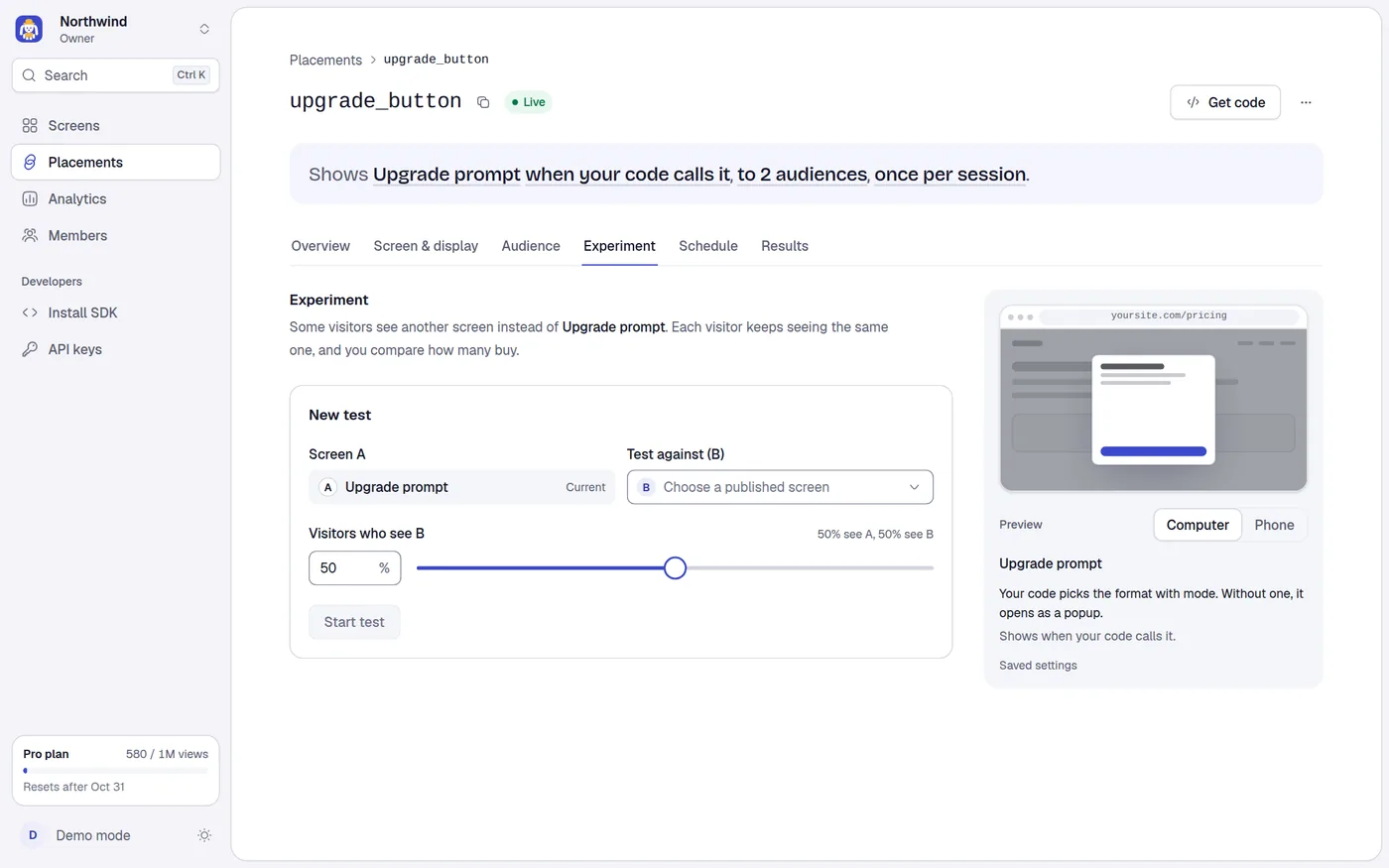
A/B tests need the Indie plan or above. On the Free plan the tab shows the form dimmed with a note and a See plans link. A test that is already running can still be ended. If your plan later drops A/B tests, the test pauses: every visitor sees screen A, and the saved test and its numbers stay.
Starting and ending a test happen at once. There is no draft and no save bar.
Before you start
- The placement needs a published screen. It becomes screen A. If it has none, the tab says
Point this placement at a published screen first; it becomes A in the test.with Choose a screen. - You need a second published screen to be B. If the project has none, the tab says Add a second screen to test against. with Create a screen. Duplicating the current screen and changing one thing is a quick start.
- Only one test can run on a placement at a time.
- Make sure your site passes a price for every package ID that B uses. The tab warns you:
B uses package IDs your site may not price yet: .... Add them toproductsbefore you start, or those cards show without a price. See Purchases in the SDK.
Start a test
Open the placement and select the Experiment tab.
Under New test, Screen A shows the placement's current screen, tagged Current. You cannot change it here.
In Test against (B) choose a published screen.
Set Visitors who see B: type a whole number from 1 to 99, or drag the slider. The line next to it reads for example 50% see A, 50% see B. The default is 50.
Select Start test. A toast says A/B test started on "key".
While a test runs:
- The status badge on the placement reads A/B test.
- The Running test panel shows each side with its name and share, and how long the test has been running.
- The screen menu on Overview and the list is locked, because changing A would change the test.
- See results opens the Results tab.
How visitors are split
- The SDK gives each visitor a stable number from 0 to 99 based on a random visitor ID stored in their browser and the test's id. Visitors with a number below the B share see B, everyone else sees A. The same browser always sees the same side. A new test reshuffles everyone. A visitor who clears their browser data may land on the other side.
- Audiences run first. A visitor who matches an audience sees that audience's screen and takes no part in the test. The test splits only the visitors who match no audience.
- A schedule in force replaces the default screen and pauses the test while it lasts: everyone sees the scheduled screen and no test events are recorded.
- A holdout is applied after the side is chosen. Held-out visitors see nothing and are not counted in the test.
- If B is deleted or unpublished while the test runs, delivery skips the test and everyone sees A.
- Events carry the test id and the side (
aorb) so the numbers are separate. Only views that come from the placement count. A site that loads the paywall by paywall ID, JSON or URL takes no part.
End a test
On the Running test panel select End test.
In End the test? choose the screen everyone sees from now on:
- A:
Nothing changes on your site. - B:
Everyone sees it from now on.The placement is switched to B. If B was deleted it is disabled withThis screen was deleted, so it cannot win.
Select End test. A toast says Test ended; everyone sees A or "key" now shows NAME to everyone.
The results stay in the Results tab. The tab then shows Last test with both names, when it ended and A won or B won, a Start new test button, and See results. Starting a new test shows the form again, with Cancel to go back.
Rules the server enforces
| Rule | Message |
|---|---|
| Plan has A/B tests | Upgrade to Indie to use A/B tests |
| Placement has a published screen | The placement needs a published paywall first; that paywall is A in the test |
| B differs from A | Pick a different paywall to test against |
| B is published | Publish the paywall you want to test first |
| One test at a time | An A/B test is already running on this placement |
| Share of B | A whole number from 1 to 99 |
| Ending twice | This A/B test has already ended |
Tips
- Change one thing at a time between A and B so you know what made the difference.
- Wait until each side has at least 100 visitors before you read the result. The Results tab says Too early to call until then.
- Do not change a placement's audiences or schedule mid-test unless you accept that the groups change.