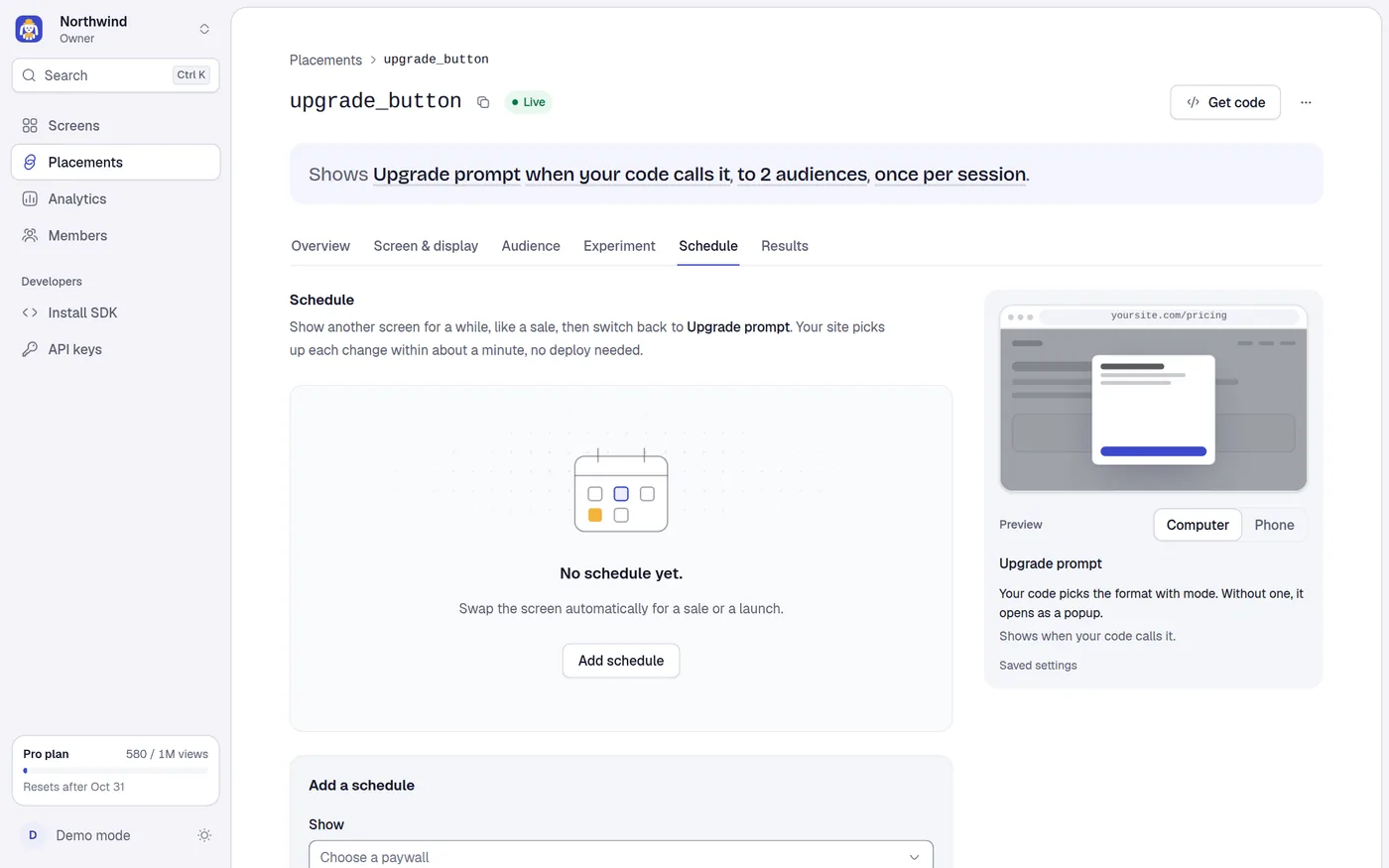
Schedule
Swap the screen of a placement for a set period, like a sale or a launch, and switch back automatically.
Use the Schedule tab to show another screen for a while and then go back to the placement's normal screen. A Black Friday paywall that starts at 8:00 and ends on Monday is a schedule. You set it once, and your site follows it with no deploy.
Schedules need the Indie plan or above. On the Free plan the form is dimmed with a note and a See plans link. Schedules you added earlier can still be read and deleted. If your plan later drops schedules they stop applying but stay saved.
Adding and deleting schedules happen at once. There is no draft and no save bar.
How it works
- The placement keeps its own screen (shown on the tab as the screen it goes back to). A schedule says "from this time to that time, show this other screen instead".
- Your site picks up each change within about a minute.
- A schedule that is in force wins over the placement's own screen and pauses any A/B test on the placement. The status badge reads Scheduled.
- Audiences still run first: a visitor who matches an audience sees that audience's screen, not the scheduled one.
- If the scheduled screen is not published when the time comes, the placement keeps showing its own screen.
- Times are shown and entered in your browser's time zone. The tab names it, for example
Times are in your time zone (Europe/Paris).Times are stored exactly and apply to all visitors at the same moment.
Add a schedule
Open the placement and select the Schedule tab. If there are no schedules the tab says No schedule yet. with Add schedule, which takes you to the form.
Under Add a schedule, choose the screen in Show. The menu lists every screen except the one the placement shows now. Screens that are not published have a Draft tag. If you pick one the field says Publish it before the start, or key keeps showing NAME.
Set From: the date and time it starts. The default is the start of the next full hour. If the start is not in the future, the tab says The start is not in the future, so it begins right away.
Set Switch back at: when the placement returns to its own screen. The default is 24 hours after the start. Turn the switch Switch back at an end time off for no end. Then key keeps the new screen until you delete the schedule.
Select Add schedule. The button reads Adding… while it works. The new schedule appears in the list.
The button stays disabled until a screen and a start are chosen and the end is after the start. If the end is not after the start the field says Pick a time after the start.
The list
Schedules that have not ended are listed soonest first. Each row shows the screen name, a badge and the window.
| Badge | Meaning |
|---|---|
| Live now | It is in force. |
| Upcoming | It starts later. |
| Ended | Its end has passed. |
The window reads Nov 25, 8:00 AM → Nov 29, 11:59 PM, or Nov 25, 8:00 AM → no end.
Delete a schedule
Select the bin on a row.
- An Upcoming schedule is removed at once with an Undo toast.
- A Live now schedule asks first: Delete this schedule?
key goes back to NAME right away.Confirm with Delete schedule.
Rules the server enforces
| Rule | Message |
|---|---|
| Plan has schedules | Upgrade to Indie to use schedules |
| The screen exists in the project | That paywall does not exist in this project |
| End after start | The end must be after the start |
| End not already past | The end is already in the past |
| No overlap on one placement | This overlaps another schedule on this placement |
Two schedules on one placement cannot overlap. A schedule with no end overlaps every later one, so you can add another only before it starts.