Variables and languages
Put prices and your own values into text, preview example prices, and add languages.
Use this page when a text should show a price or a value from your site, or when a screen needs to speak more than one language.
In your code
Your site fills the variables when it shows the screen and picks the language from locale. Details: Variables and Localization.
Put a variable in a text
A variable is a name in double braces, for example {{ product.price }}. The SDK replaces it with a real value when the screen shows.
Select a text. In the Design panel, find Content.
Select the Insert Variable button next to Content, search for the variable and pick it. It lands where your cursor was.
On a plan card, {{ product.price }} shows the price of that card's package. If you type a name that does not exist, the editor lists it among the issues to fix before publishing.
See the example prices
Open Variables in the left panel. It lists every variable you can use.
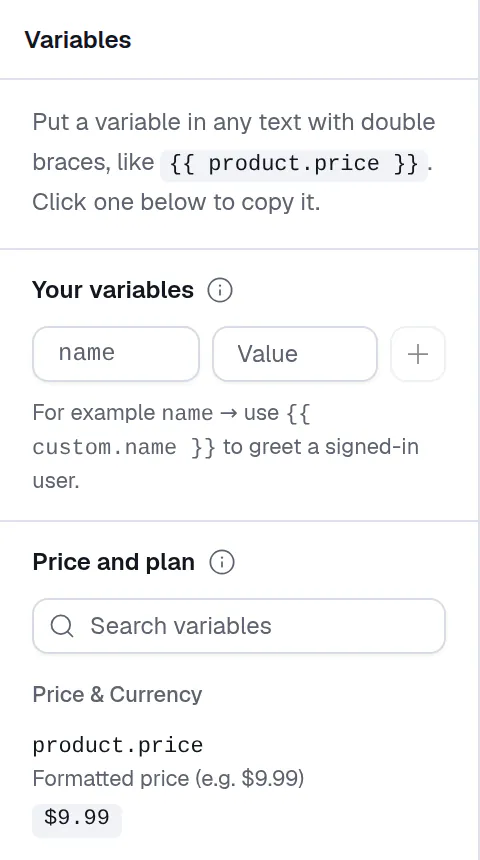
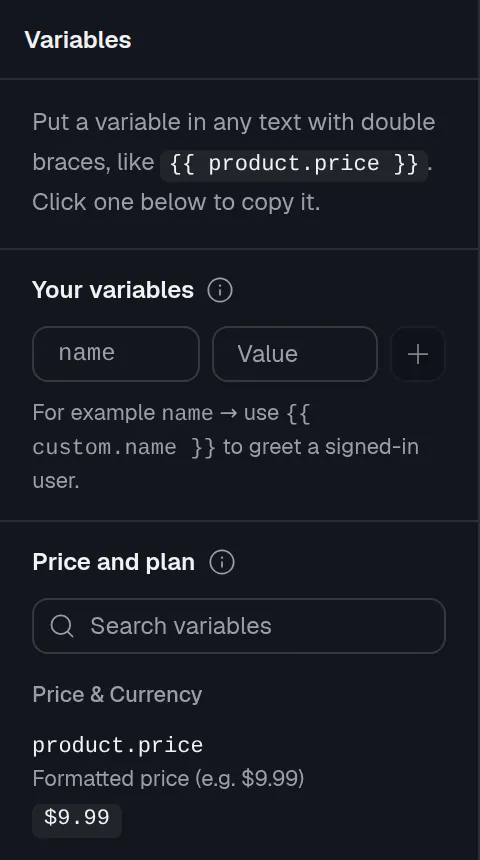
- Price and plan holds the built-in variables. Use Search variables to find one. Select a row to copy it, then paste it into a text.
- The canvas shows example prices for each package ID, such as
monthlyandannual. On your site every package shows the price your code passes in. - Your variables holds your own values. Add a name and a Value, and it becomes
{{ custom.name }}. The value only fills the preview. Your site passes the real one.
Add a language
Open Translations in the left panel. At first it says Add a language to start translating.
Open Language to add, choose a language and select Add. The canvas switches to that language.
Type each translation in the box under the original text. Only untranslated hides the texts you already did, and the counter shows how many are done.
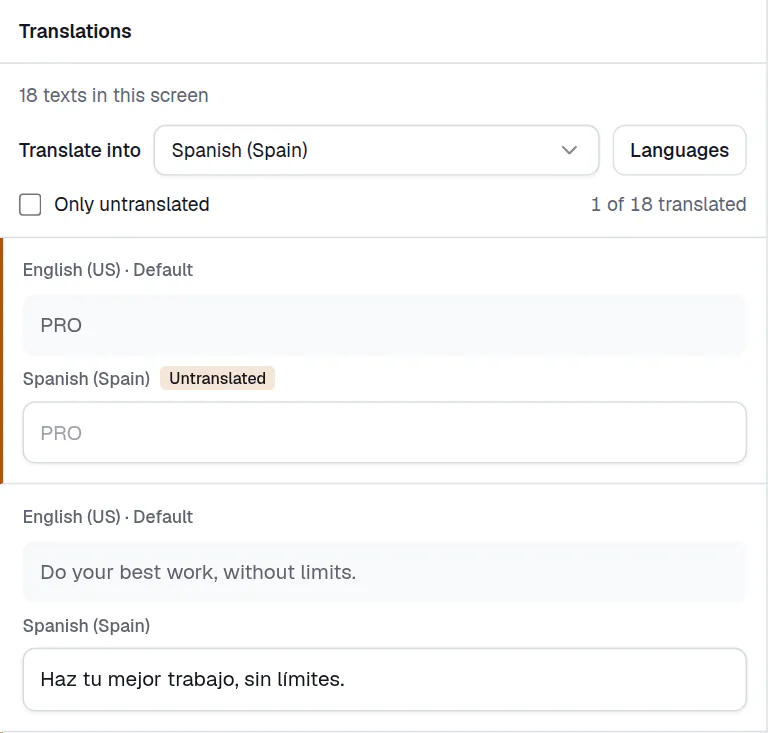
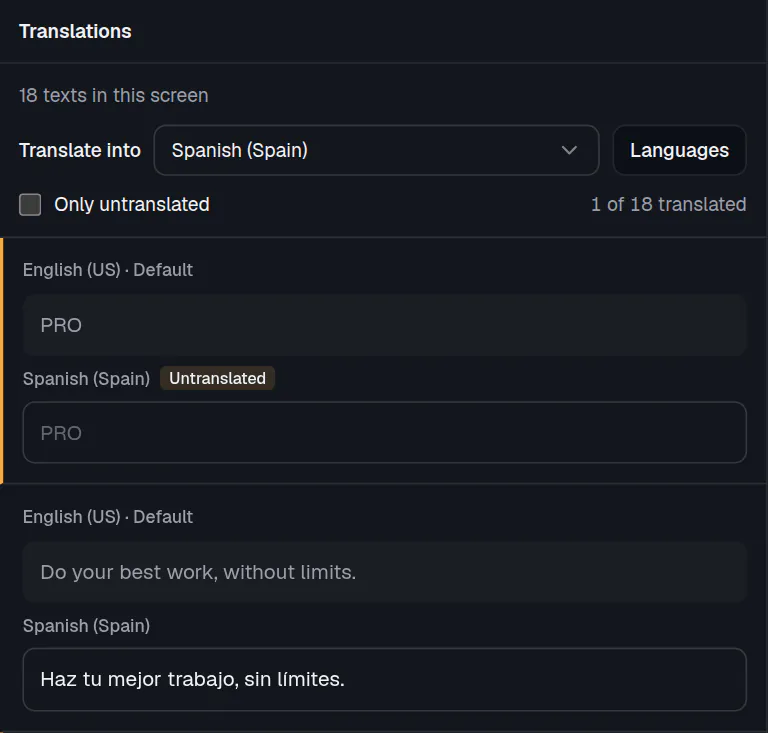
- Translate into picks the language.
- Languages adds, removes or sets the default language.
- A text without a translation is marked Untranslated and shows the default language to visitors.
- The Languages menu lists every language of the screen. From there you can add one, use Make default to change the default language, or Remove language. Removing a language deletes its translations.
- Some right-to-left languages can be added and translated, but the layout stays left to right for now. The editor warns you when you pick one.
To check a language on the canvas without translating, select Preview options above the canvas and change Language.
Next: Build a flow with questions.