Build your first screen
Create a screen from a template or from scratch, then find your way around the editor.
Use this page when you open the editor for the first time. You pick a starting point, name the screen and land in the editor with a screen ready to change.
Create a screen
In the project sidebar, open Screens and select New screen.
Pick a starting point. Use Search templates to filter the list. Pick Blank (Build from scratch) for an empty screen, or a template. The examples in this guide use Minimal Pro.
A box shows the template up close. Use Preview (Light or Dark) to see both looks. Type a Screen name, for example Upgrade prompt.
Select Use template. For Blank, the button reads Create blank screen. The editor opens on your new screen.
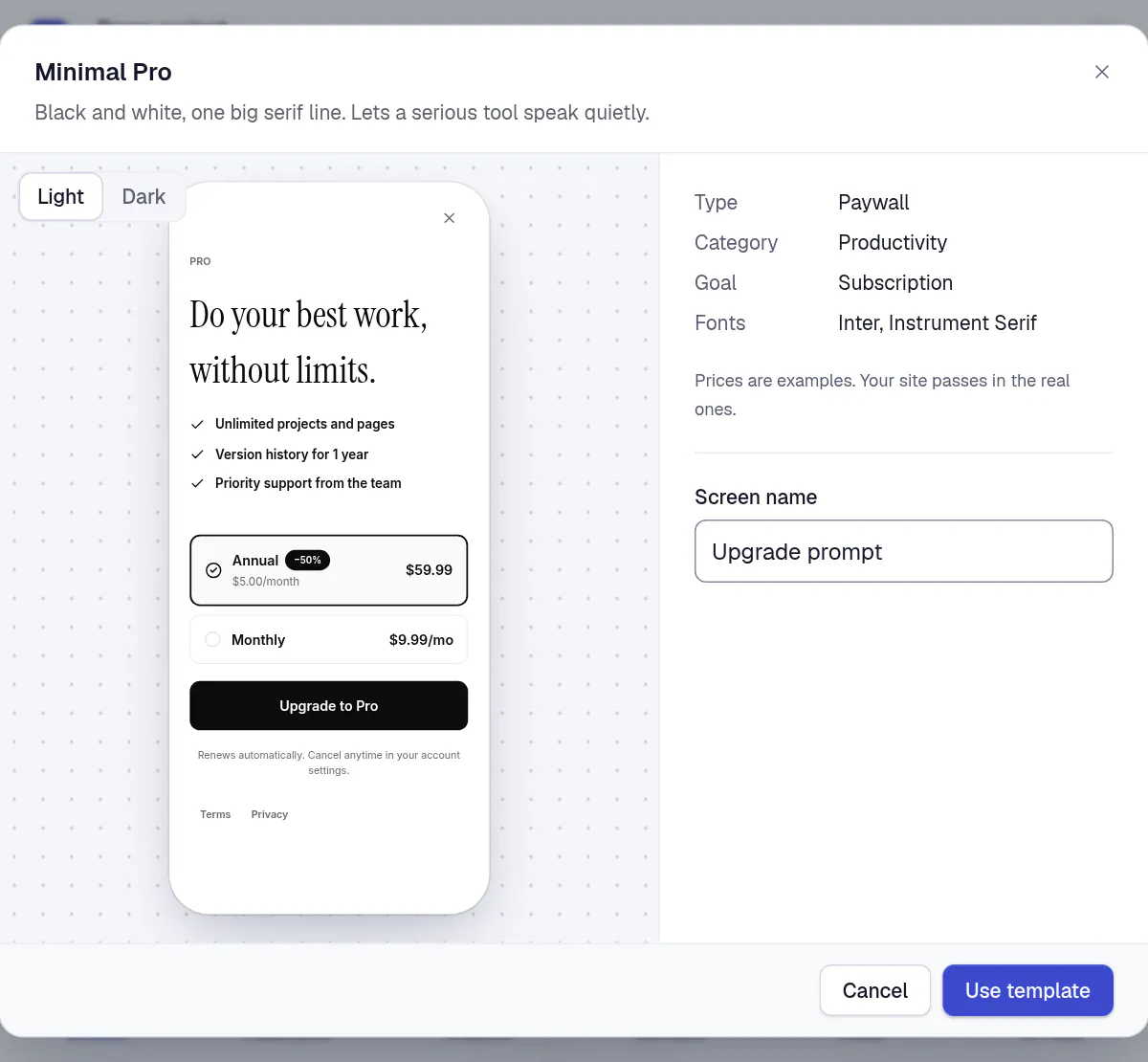
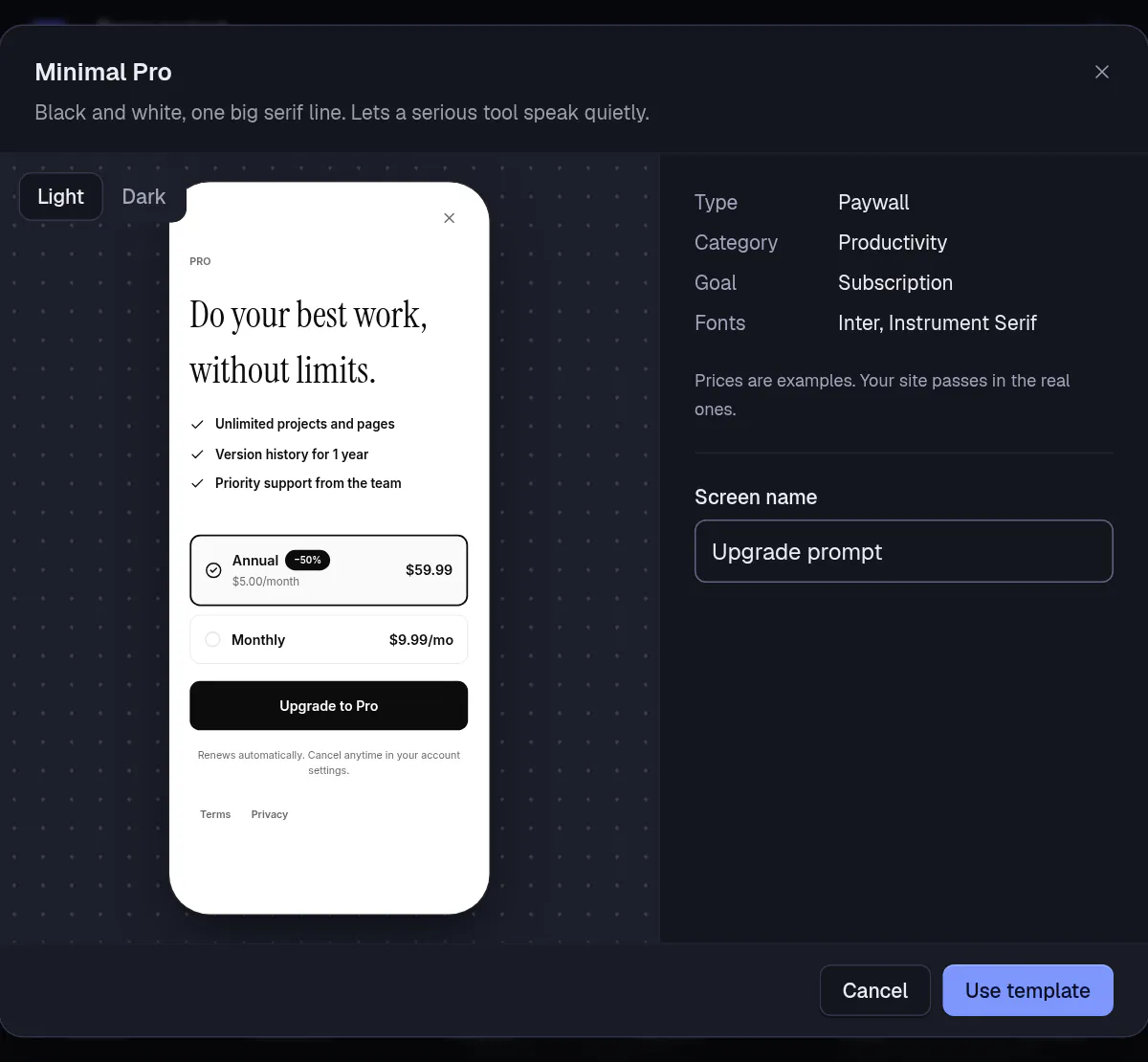
- Type a Screen name.
- Select Use template.
Some templates are a set of linked screens, such as an onboarding. Their button names the number of screens, such as "Create 3 screens", and they open on the map of the flow. See Build a flow with questions.
Find your way around
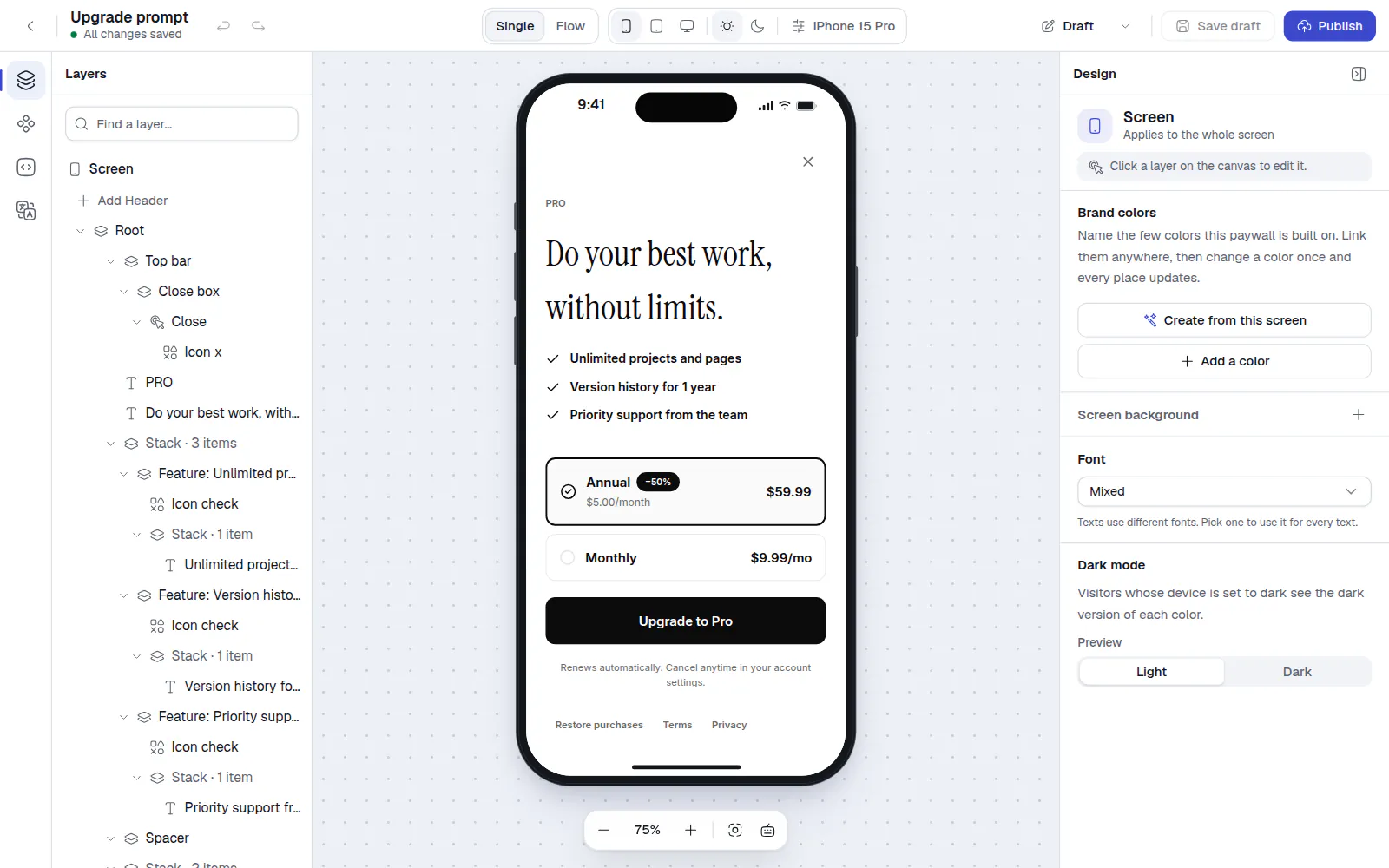
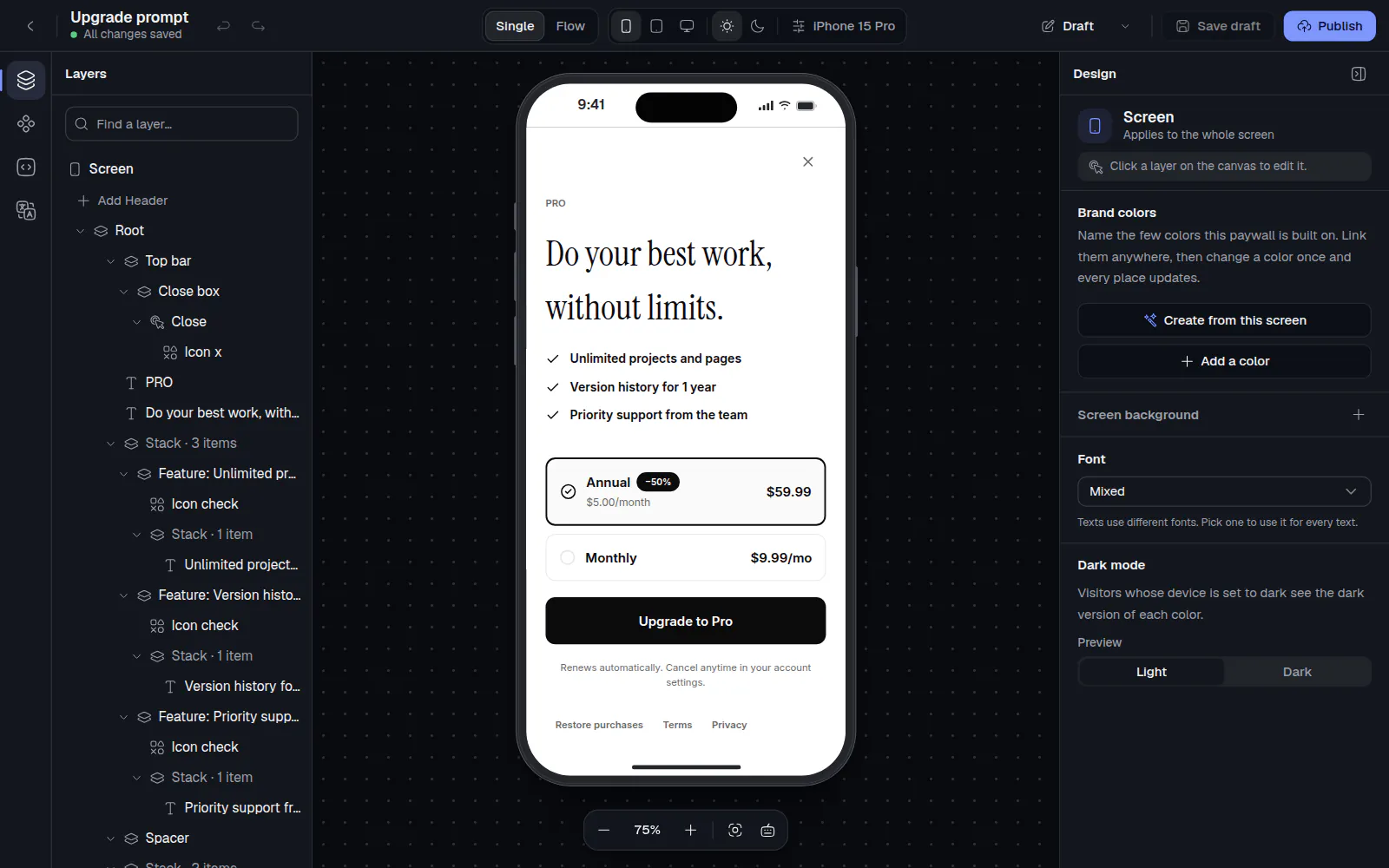
- The left panel.
- The canvas.
- The Design panel.
- The top bar.
| Area | What it does |
|---|---|
| Left panel | A rail of tabs: Layers (the structure of the screen), Components (what you can add), Variables and Translations. |
| Canvas | The screen, drawn by the same renderer your visitors get. Click anything on it to select it. |
| Design panel | The settings of the selected layer. With nothing selected it shows the settings of the whole screen. If it is hidden, select Show design panel. |
| Top bar | Undo, Redo, the save state, the version menu, Save draft and Publish. In the middle are the controls for how you look at the screen: Single or Flow, the device, light or dark. |
Add and select layers
Open Components and select a component to add it to the selected layer, or drag it onto the canvas. Use Search components to find one by name. The groups are Basics, Purchase, Interactive, Questions and Content.
Open Layers to see the screen as a tree. Select a row to select the layer. Use Find a layer to search by name. Drag a row to move the layer. The actions menu of a row holds Duplicate and Delete.
Saving
The editor does not save by itself. Your changes stay in the browser until you save them.
- The top bar shows Unsaved changes or All changes saved.
- Select Save draft, or press ⌘S (Ctrl+S on Windows and Linux).
- Publish saves first, then makes the screen live.
- If you leave with unsaved changes, a box asks Save your changes before leaving?. Choose Save and leave, Leave without saving or Keep editing.
Saving a draft changes nothing for visitors. Only Publish does. See Preview, publish and go live.
Next: Edit layout, text and images.