Build a flow with questions
Link screens together with buttons and answers, add questions, and see the whole flow on a map.
Use this page for onboarding, surveys and multi-step offers: several screens that open one after another, with questions along the way.
In your code
Your site reads the answers in answers and onAnswer. Details: Flows and questions and Answers.
Link one screen to the next
Every screen of a flow is its own screen in the project. Create them first (Screens, then New screen), or start from a template that makes several at once.
Open the first screen. Select the button that moves the visitor on.
In the Design panel, open Type under Action and choose Go to another screen.
Open Screen and pick the next screen. Screens that are not published yet are marked (not published).
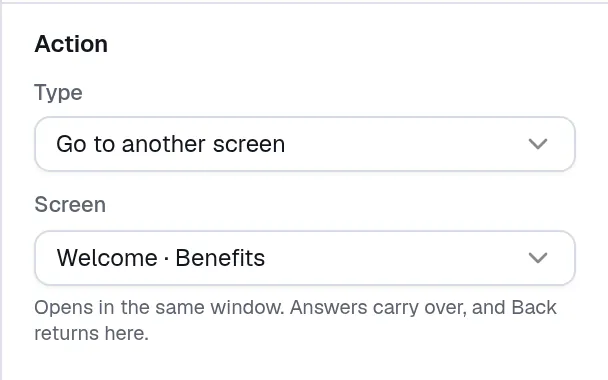
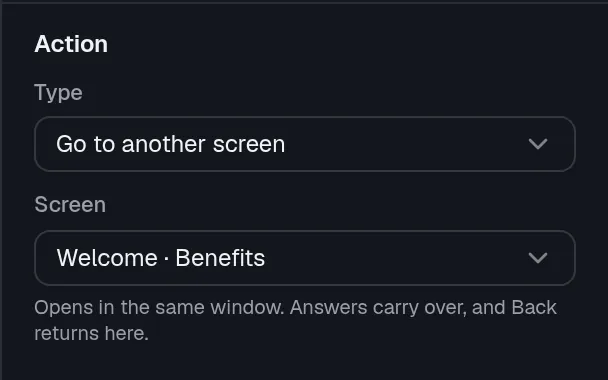
- Screen holds the screen that opens next.
The target opens in the same window and the answers carry over. Publish the target too, or the button does nothing on your site. Back to previous screen returns to the screen before this one with its answers kept.
Add a question
Open Components and look in Questions:
| Component | What the visitor does |
|---|---|
| Single choice | Picks one answer. |
| Multiple choice | Picks several answers. |
| Text field | Types an answer. |
Select the question to set it up in the Design panel.
- Field ID names the answer. Your site gets it as
answers.<field ID>. - Must answer to continue blocks the next step until the visitor answers.
- In Answers, select Add answer for more choices, and select an answer to change its text and Answer ID. A question needs at least 2 answers.
- Limit how many they pick (multiple choice) sets At least and At most.
- A Text field has a Keyboard setting (text, email, number, phone or website). What visitors type stays with your site.
A single-choice answer can also open a screen. Select the answer and set When picked to Select it and go to another screen, then pick the Screen.
See the whole flow
Switch the view above the canvas from Single to Flow. The editor shows every screen linked to this one as a map.
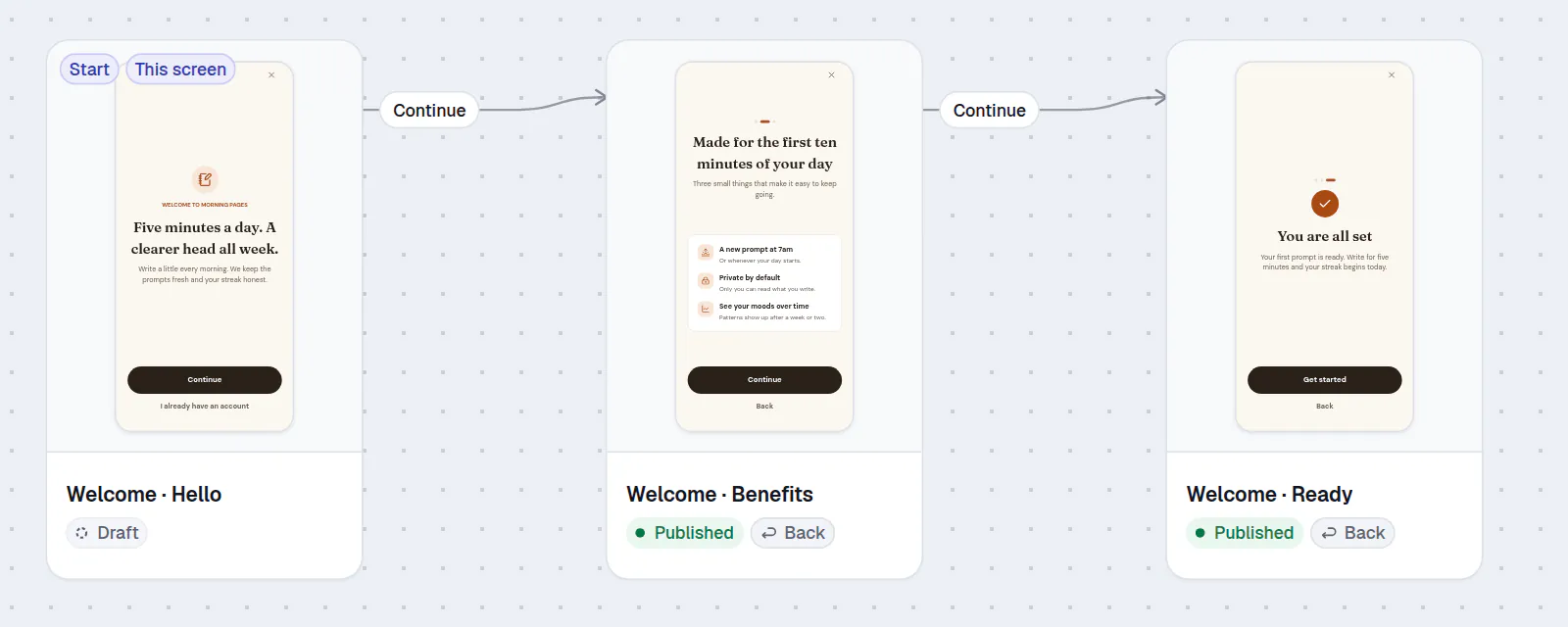
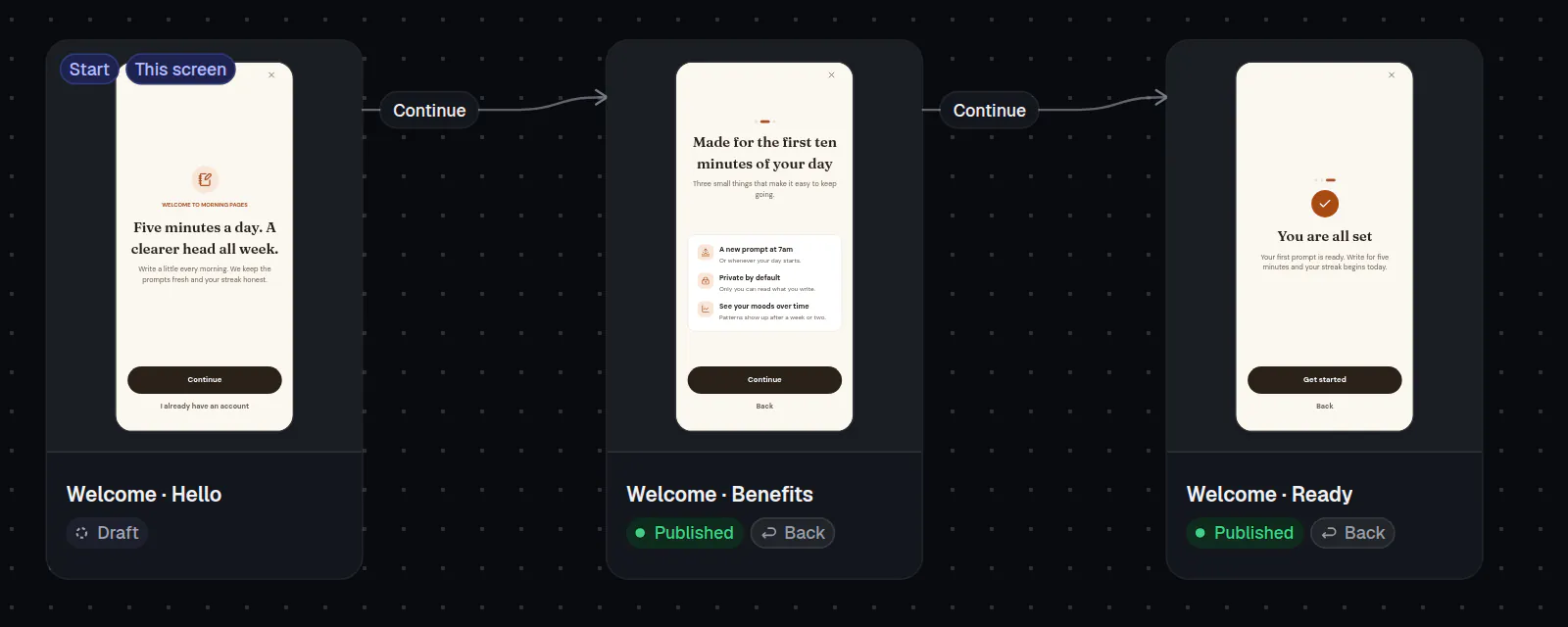
- A card marked Start is where the flow begins. This screen is the one you came from.
- Not published and Missing screen point at links that would do nothing on your site. Fix them before you publish.
- Select Show as list for a step-by-step list, and Show as map to go back. Zoom and Fit the flow are on the map.
- Select Preview flow to click through your saved drafts with example prices. Select Start over to begin again. Nothing is sent to your analytics.
- In Flow view you look but do not edit. Select Edit screen to open a screen, and change links in Single view.
Next: Preview, publish and go live.