Edit layout, text and images
Change the layout, words, images, colors and font of a screen, and check it in dark mode.
Use this page when a screen exists and you want it to look and read the way you want. Everything you change shows on the canvas right away.
Change text
Click a text on the canvas. Its settings open in the Design panel on the right.
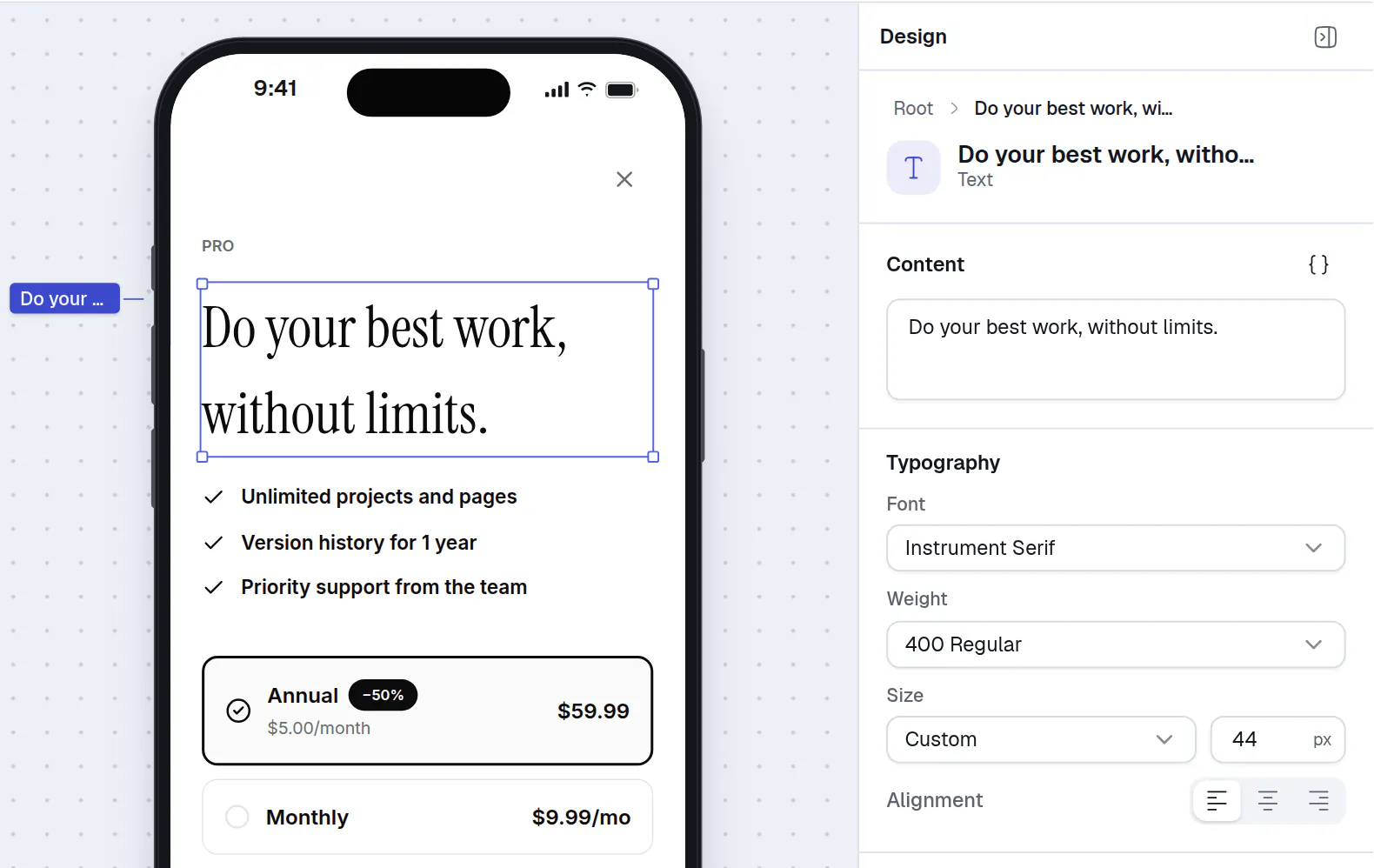
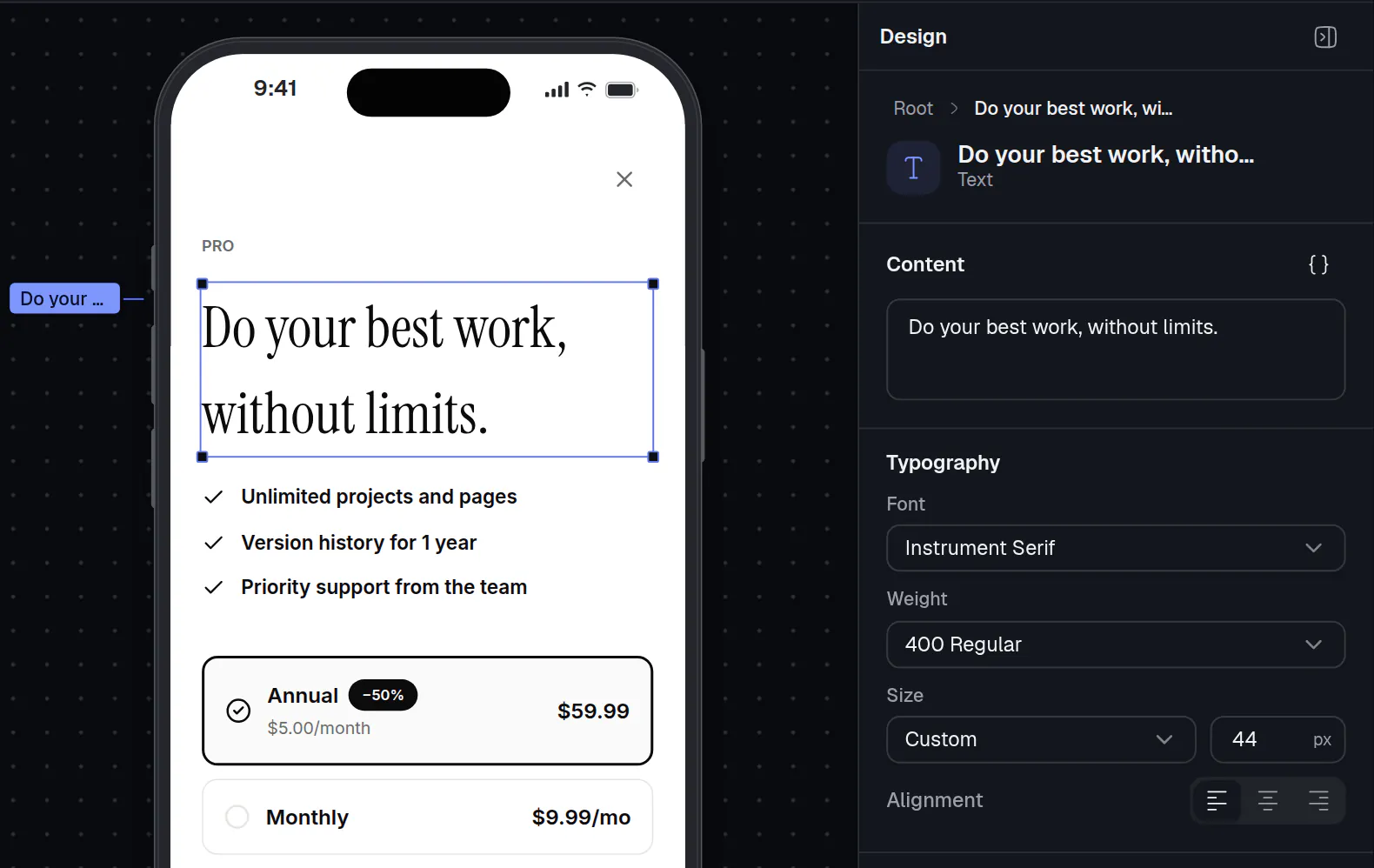
- The selected text.
- Content holds its words. Typography sets its look.
- Content holds the words. Type to change them. The words are saved for the language you are previewing. See Variables and languages.
- Typography sets Size and Alignment (Leading, Center, Trailing).
- Text Color and Background Color set the colors.
- Padding and Margin under Spacing add room around the text.
To add a new text, open Components and choose Text from Basics.
Change the layout
Layouts are built from stacks. A Stack groups layers in a column or a row. Select a stack in Layers or on the canvas to change it in the Design panel:
- Direction is Horizontal, Vertical or Z-Layer (layers on top of each other).
- Alignment, Gap, Size, Padding and Margin space the layers inside it.
- Fill gives the stack a background.
To rearrange, drag a row in Layers to a new place. To copy a layer, open its actions menu and choose Duplicate.
Change an image
Select an image on the canvas, or add one from Components (Image in Basics).
In the Design panel, under Content, select Choose Image. If the image already has a picture, the button reads Change Image.
The Image Library lists the images in this project. Pick one, or select Upload to add a new one. Images can be PNG, JPEG, WEBP or GIF, up to 5 MB.
Use Fit Mode, Width and Height under Layout to control how the picture fills its frame.
Set brand colors
Brand colors give your colors names. You link a text or a background to a name, then change the color once and every place that uses it updates.
In Layers, select Screen at the top. The Design panel shows the settings of the whole screen.
Under Brand colors, select Create from this screen to name the colors the screen already uses. Or select Add a color to add one yourself.
Rename a color in its row, change its Light and Dark values, and see in Uses how many places use it. Select Link matches to link every plain color that matches a brand color.
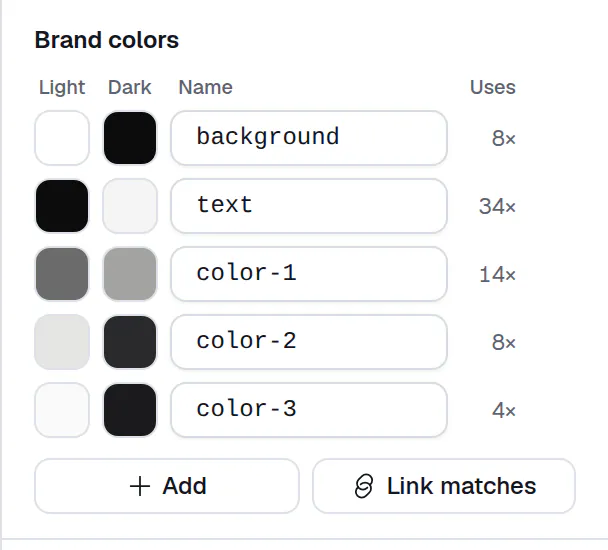
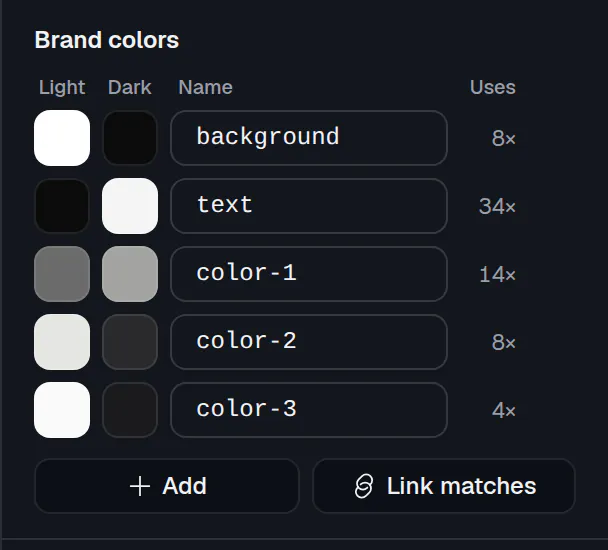
The same panel has Screen background and the screen-wide Font. Font sets one family for every text. A single text can still pick its own font in its own panel.
Check dark mode
Visitors whose device is set to dark see the dark value of each color. To check it, use the sun and moon buttons above the canvas (Light mode and Dark mode), or the Preview switch in the Dark mode section of the screen settings.
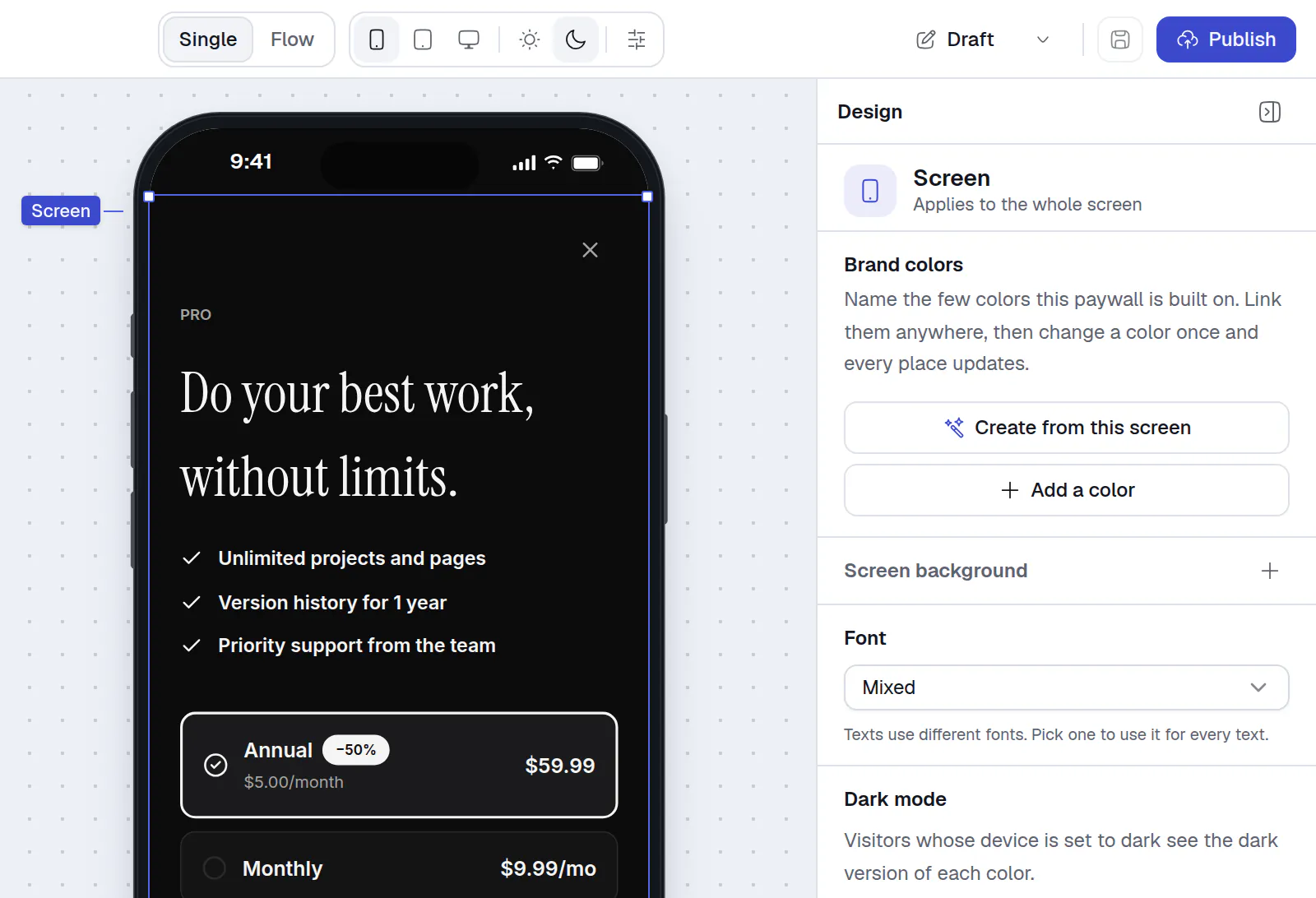
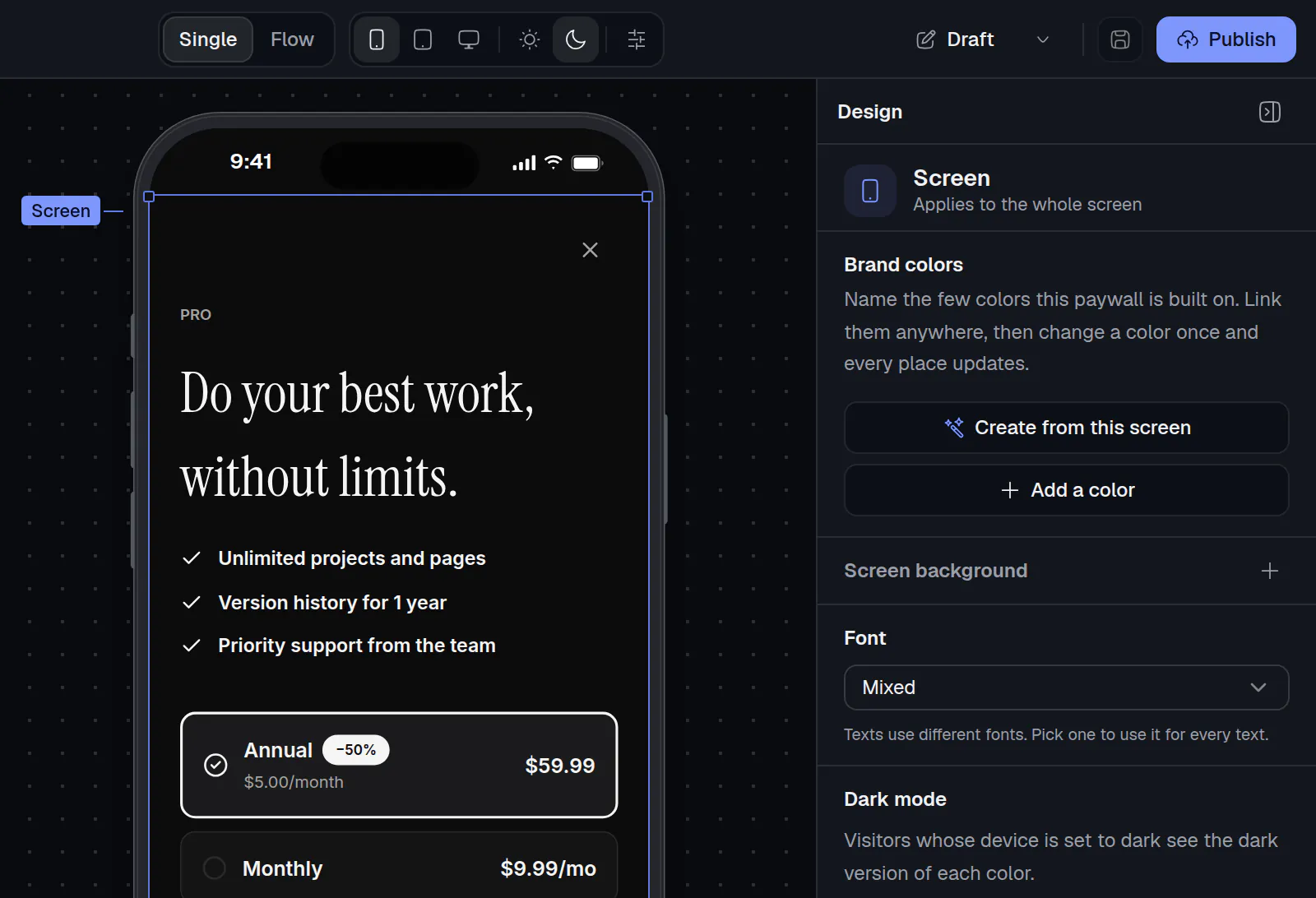
- Dark mode previews the dark colors.
The Dark mode section also says how many brand colors have a dark value. Colors without one stay the same in dark mode.
To see the screen on a tablet or a desktop browser, use the device buttons (Phone, Tablet, Desktop). More options are in Preview, publish and go live.
Next: Plan cards and buttons.