Variables
Put prices, billing periods and your own values into text with double-brace variables.
Use this page when a text should change with the plan or the visitor: a price, a trial length, a discount, or a name.
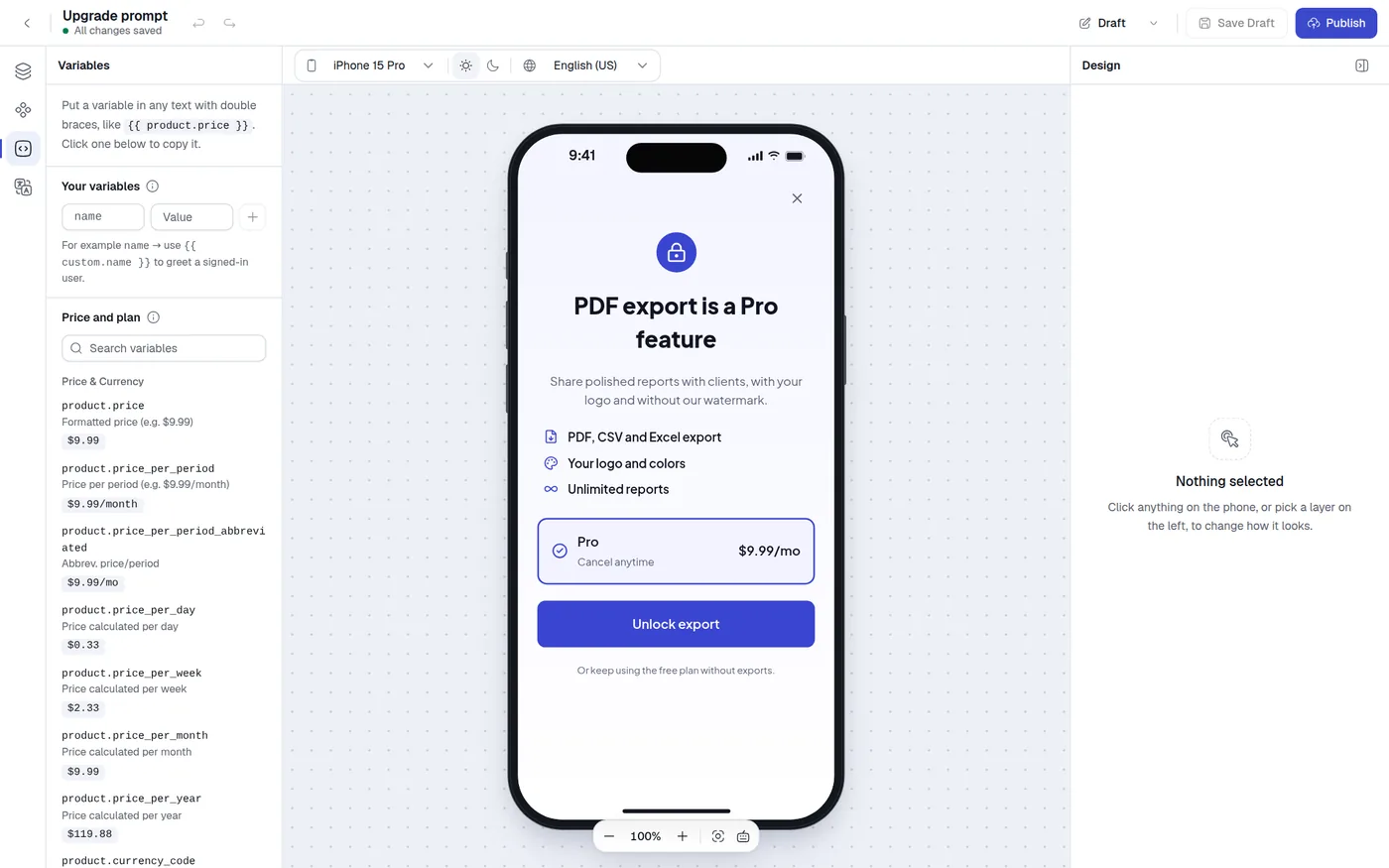
Write a variable
A variable is a name in double braces inside a text, for example {{ product.price }}. Spaces inside the braces are optional.
Two ways to insert one without typing:
- Open the Variables panel (left side, key
3) and click a variable to copy it, then paste into a text. - Select a Text layer and click Insert Variable next to the Content heading. Search, then click a row. It is inserted at your cursor.
A variable that has no value on your site shows as nothing (an empty string). A name with characters the renderer does not accept stays visible as typed.
Modifiers change the case of the result:
{{ product.period | uppercase }}
{{ product.period | lowercase }}
{{ product.period | capitalize }}
Price and plan variables
The Price and plan section of the panel lists the built-in variables with an example value. Use the search box to filter by name or description. Text inside a plan card shows that card's own values. Text outside the cards shows the values of the selected card.
On the canvas the values are examples chosen by package ID. On your site they come from the products you pass to the SDK. See Packages and pricing.
Price and currency
| Variable | Example |
|---|---|
product.price | $9.99 |
product.price_per_period | $9.99/month |
product.price_per_period_abbreviated | $9.99/mo |
product.price_per_day | $0.33 |
product.price_per_week | $2.33 |
product.price_per_month | $9.99 |
product.price_per_year | $119.88 |
product.currency_code | USD |
product.currency_symbol | $ |
Billing period
| Variable | Example |
|---|---|
product.period | month |
product.period_abbreviated | mo |
product.periodly | monthly |
product.period_in_days | 30 |
product.period_in_weeks | 4 |
product.period_in_months | 1 |
product.period_in_years | 0 |
product.period_with_unit | 1 month |
Trial and intro offer
These need an offer in products.
| Variable | Example |
|---|---|
product.offer_price | $0.00 |
product.offer_price_per_day, _per_week, _per_month, _per_year | $0.00 |
product.offer_period | day |
product.offer_period_abbreviated | d |
product.offer_period_in_days, _in_weeks, _in_months, _in_years | 7, 1, 0, 0 |
product.offer_period_with_unit | 7 days |
product.offer_end_date | August 6, 2026 |
Discount and product
| Variable | Example |
|---|---|
product.secondary_offer_price | $1.99 |
product.secondary_offer_period | month |
product.secondary_offer_period_abbreviated | mo |
product.relative_discount | 20% |
product.store_product_name | Premium Subscription |
What the Web SDK computes
From products the SDK fills price, currency, the period variables, the price_per_* variables, price_per_period, the offer variables (when an offer is given) and store_product_name (when title is given). product.relative_discount is computed only when at least two recurring plans exist: each plan is compared with the most expensive plan per month.
The SDK does not compute product.offer_end_date or the product.secondary_offer_* variables. If you use them, pass them yourself with variablesPerPackage. A lifetime plan has no per-day, per-week, per-month or per-year prices.
If a text says Save {{ product.relative_discount }} and your site has only one recurring plan, the value is empty and the text reads "Save". Check the variable can be computed for every plan that shows it.
Your own variables
Use these for values only your site knows, such as a name or a promo code.
Open Variables and find Your variables.
Type a Variable name and a Preview value, then click Add variable.
Use it in a text as {{ custom.name }}, replacing name with your variable name.
Names may contain letters, numbers, ., _, - and $. Anything else, such as spaces or accented letters, is refused with "Key can only contain letters, numbers, "." "_" "-" — no spaces or other characters."
The preview value only fills the canvas. On your site you pass the real value:
presentPaywall({
  paywall: { placement: 'welcome' },
  customVariables: { name: 'Linh', plan: 'pro' },
});
Values can be strings, numbers or booleans, and always show as plain text. Click a variable in the list to copy its token, or the trash button to delete it.
Countdown variables
Inside a Countdown layer you can use count_days_with_zero, count_hours_with_zero, count_minutes_with_zero and count_seconds_with_zero. The _without_zero versions drop the leading zero. They are not in the Variables panel.