Localization
Add languages, translate every text, choose a default, and make your site show the right one.
Use this page when one screen has to speak more than one language.
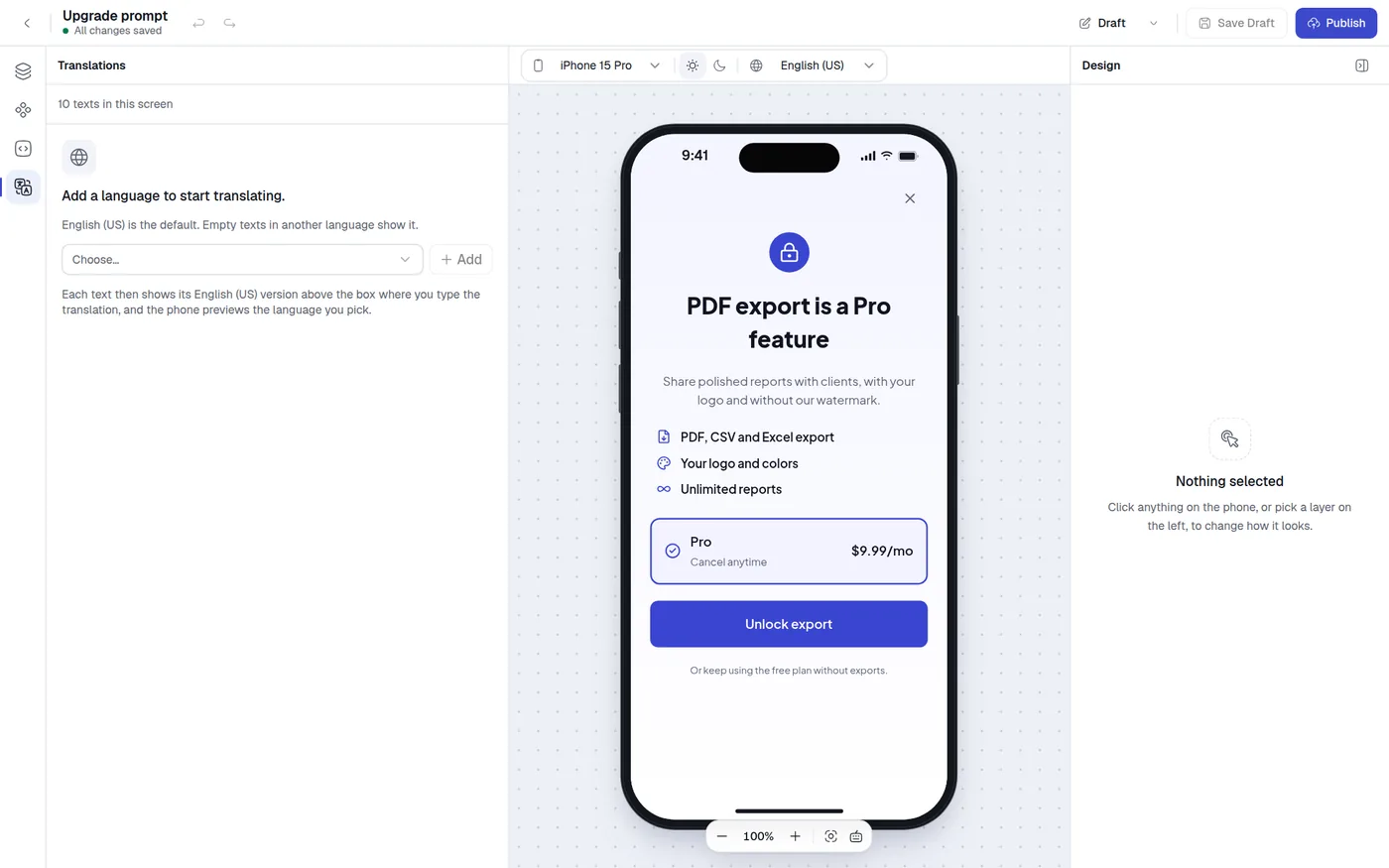
Open Translations
Click Translations in the icon rail on the left (or press 4). The rail icon shows a badge with the number of languages once there are two or more. The panel is not available while you view the Published version.
At the top it says how many texts the screen has ("N texts in this screen").
Add a language
With no other language yet, the panel says "Add a language to start translating." Choose one in the menu and click Add. Later, open Languages (top right of the panel) and use Add language.
The list is fixed so codes always have the form en_US: English (US), English (UK), Vietnamese, French, German, Spanish (Spain), Spanish (Mexico), Portuguese (Brazil), Portuguese (Portugal), Italian, Japanese, Korean, Chinese (Simplified), Chinese (Traditional), Russian, Arabic, Hindi, Thai, Indonesian, Malay, Dutch, Polish, Turkish, Swedish, Danish, Norwegian, Finnish, Czech, Greek, Hebrew, Romanian, Hungarian and Ukrainian.
Translate
Pick the language in Translate into. The canvas switches to it. Each text shows two boxes:
- The default language, labeled "· Default", on top. You can edit it here too.
- The language you translate into, below. Its placeholder shows the default text.
A text with no translation has an amber edge and an Untranslated tag. Only untranslated hides the finished ones. The counter shows "N of M translated". When all are done the list says "Everything is translated."
The list holds every text that visitors read: labels in buttons, plan cards, answers and tabs, and the web addresses of link buttons. The placeholder of a text field is not in this list. To translate it, set Preview language to the language and edit Placeholder in the text field's panel. If the screen has no texts yet, the panel offers Open Components.
The default language
The default language is the source and the fallback. New texts you add are written only in the default language. Any language without a translation for a text shows the default text. Clearing a translation deletes it, so that text falls back again.
In Languages, each row shows its progress (such as 3/8) and a Default tag on the default. On other rows:
- The star (Make default) changes the default. It only works for a language that already has at least one translation.
- The trash button (Remove language) asks "Remove this language?" and deletes all its translations.
The default language can never be removed. Its texts must be filled in to publish. See Validation.
Preview a language
The Preview language menu above the canvas shows the screen in any of its languages. Editing a text while previewing a non-default language edits that translation.
On your site
The SDK does not detect the visitor's browser language. Pass the language yourself:
configure({ apiKey: 'pk_...', locale: 'vi_VN' });vi-VN also works. The SDK uses an exact match first, then any language with the same first part (es matches es_MX), then the default language. Prices are formatted for that language too.