Preview, publish and go live
Preview a screen as a visitor would see it, fix what blocks publishing, publish, roll back and show the screen from a placement.
Use this page when a screen looks right and you want it on your site. Saving a draft changes nothing for visitors. Publishing does.
Preview
Use the controls above the canvas to see the screen the way visitors will.
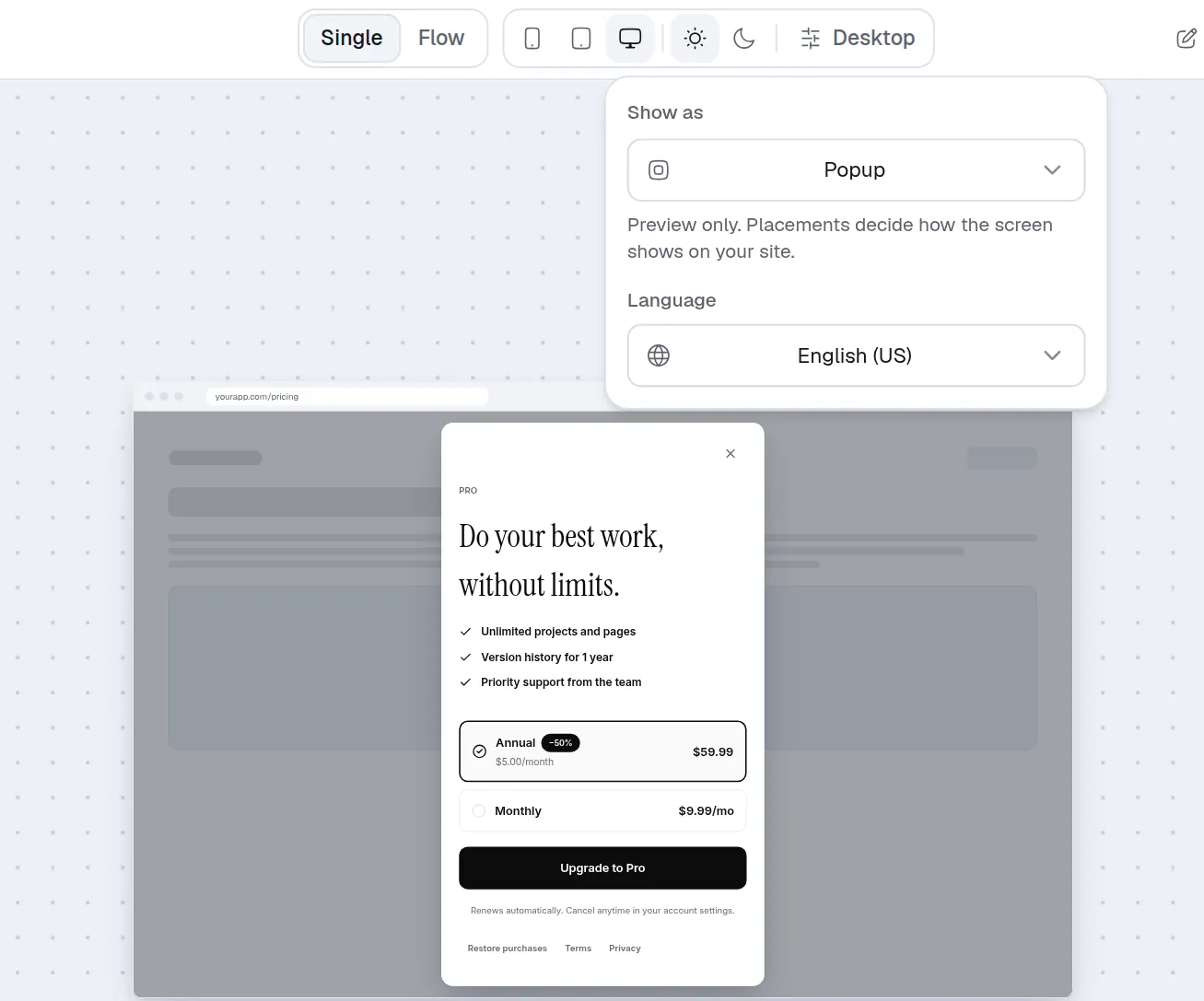
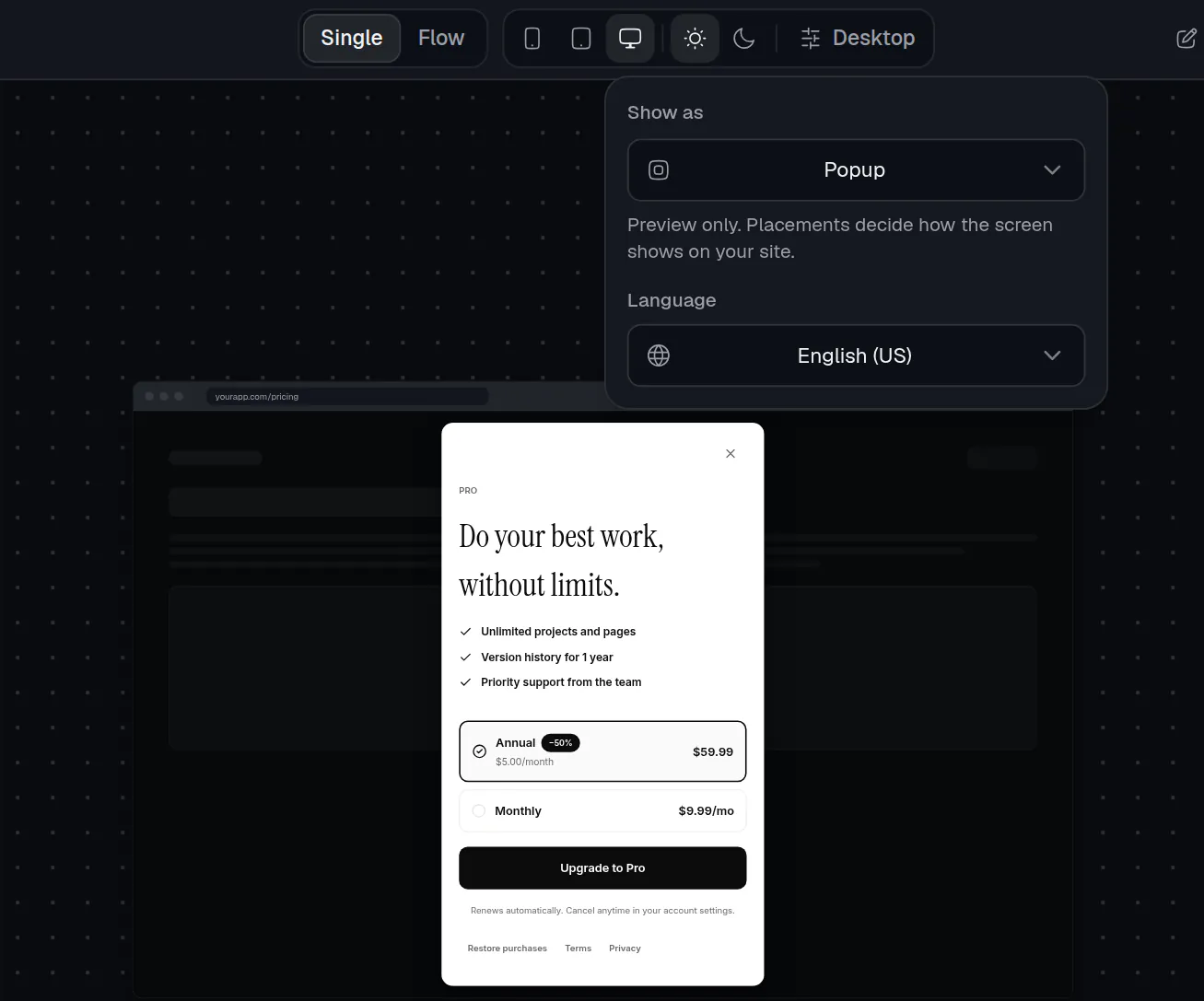
- Desktop shows the screen in a browser window.
- Show as previews it as a popup.
- Phone, Tablet and Desktop pick the device. Preview options holds the exact Model.
- Light mode and Dark mode pick the appearance.
- Show as previews how a placement could present the screen: Full screen, Popup, Banner top, Banner bottom, Slide-in, iPhone app or Android app. This is preview only. The placement decides how the screen shows on your site. See Placements.
- Language previews a language. See Variables and languages.
Fix what blocks publishing
The editor checks the screen as you work. When something would block publishing, a red chip with a count appears beside Publish, for example "2 issues". Select it to open the list.
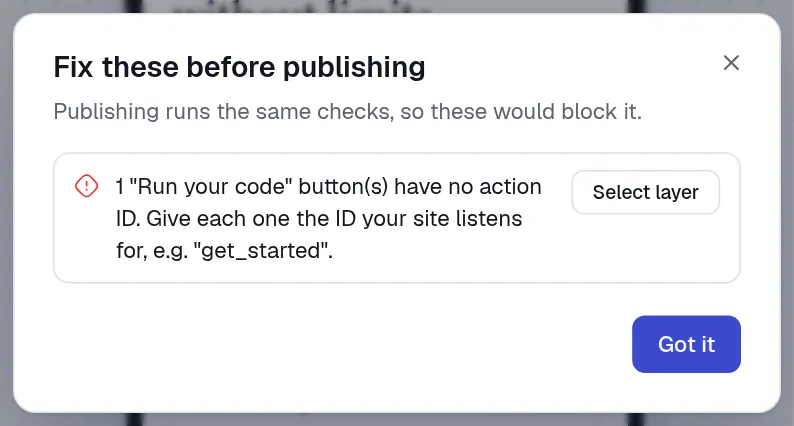
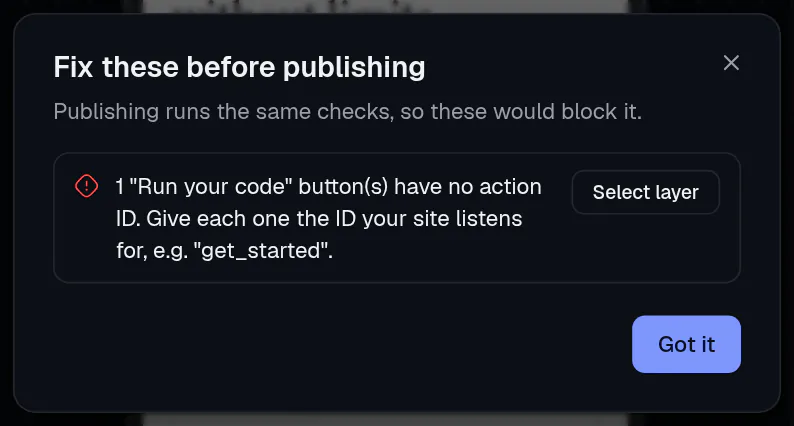
- Select layer takes you to the button to fix.
The common ones:
- A Run your code button has no action ID. Type one in Action ID.
- A plan card has no package ID. Select Set package ID.
- A Go to another screen button has no screen picked.
Select Got it, then fix the layers. The full list of messages is in Validation. Items marked as worth a look, such as app store checks when you preview as an app, never block publishing. Choose Keep editing or Publish anyway.
Publish
Select Save draft or press ⌘S (Ctrl+S on Windows and Linux) if you want to keep your work without going live.
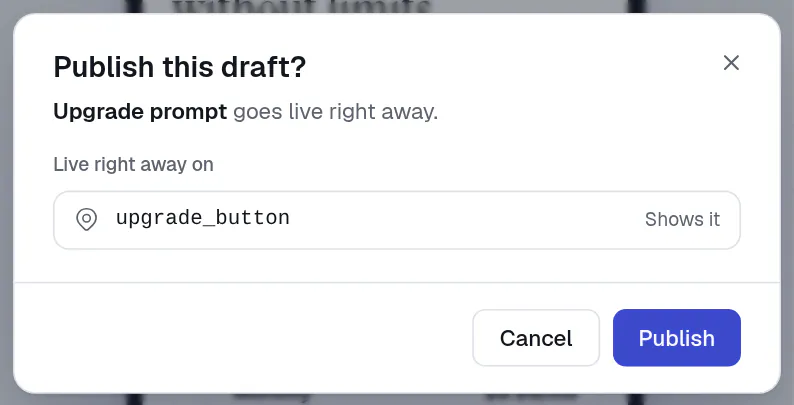
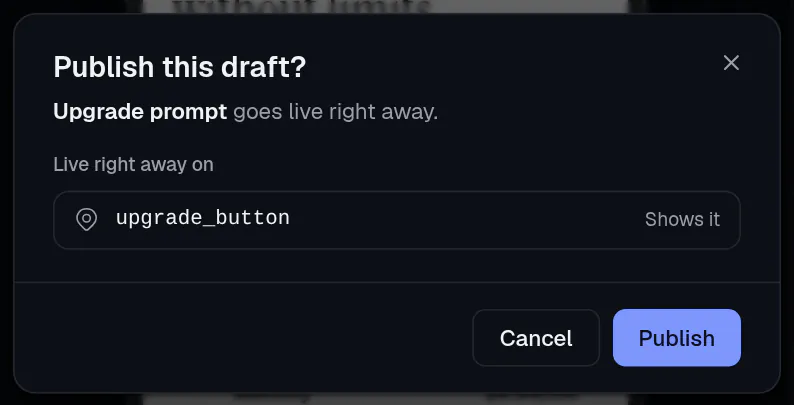
Select Publish. The box Publish this draft? shows where the screen goes live under Live right away on. If you changed package IDs or action IDs since the live version, it lists them under IDs your site relies on changed. Make sure your site is ready.
Select Publish again to confirm. Publishing saves the draft first, and visitors get the new version within about a minute.
Find an earlier version
The version menu in the top bar shows Draft or Published. Open it to switch between them.
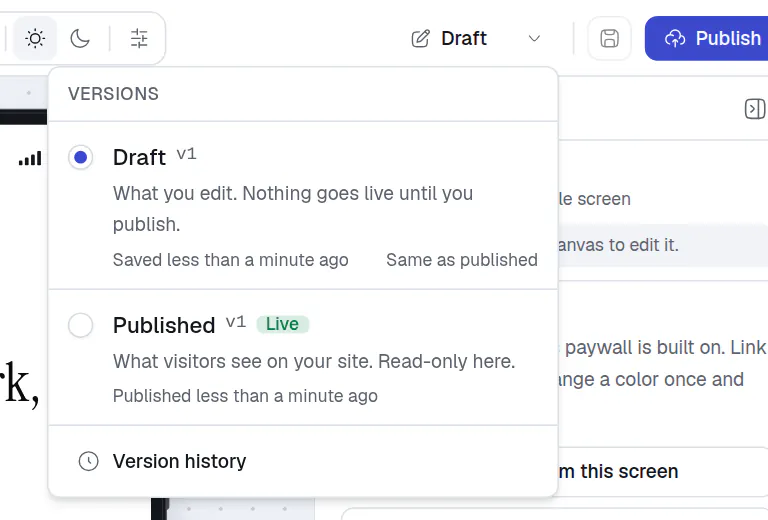
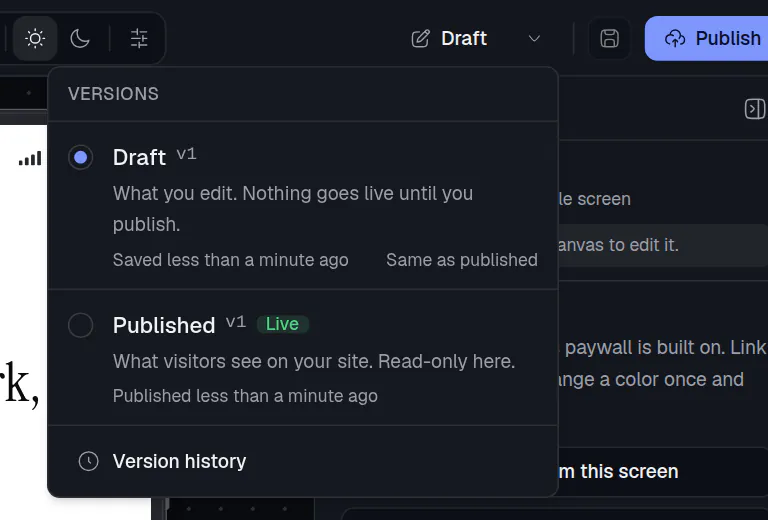
- Draft is what you edit. Discard changes replaces it with the published version.
- Published is what visitors see. You can look at it, not change it.
- Version history lists every version that went live. Choose Make it live to bring an old version back, or Copy into draft to keep working from it.
Show the screen from a placement
A screen only reaches visitors through a placement. After you publish, the message offers Add to a placement.
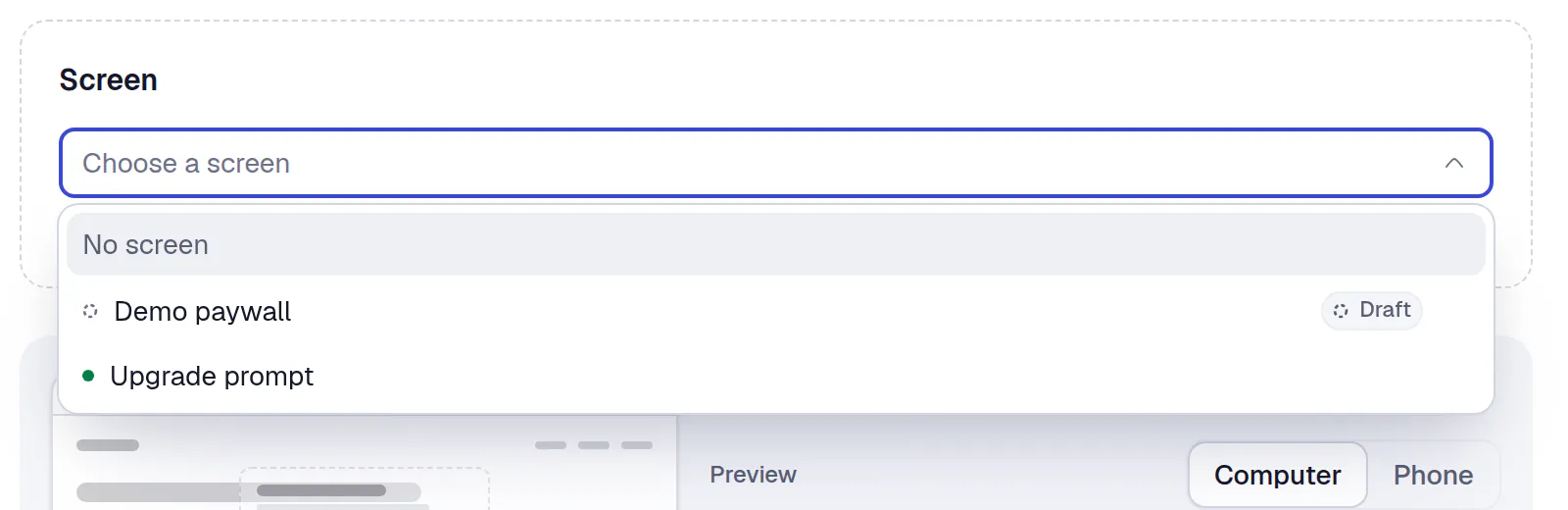
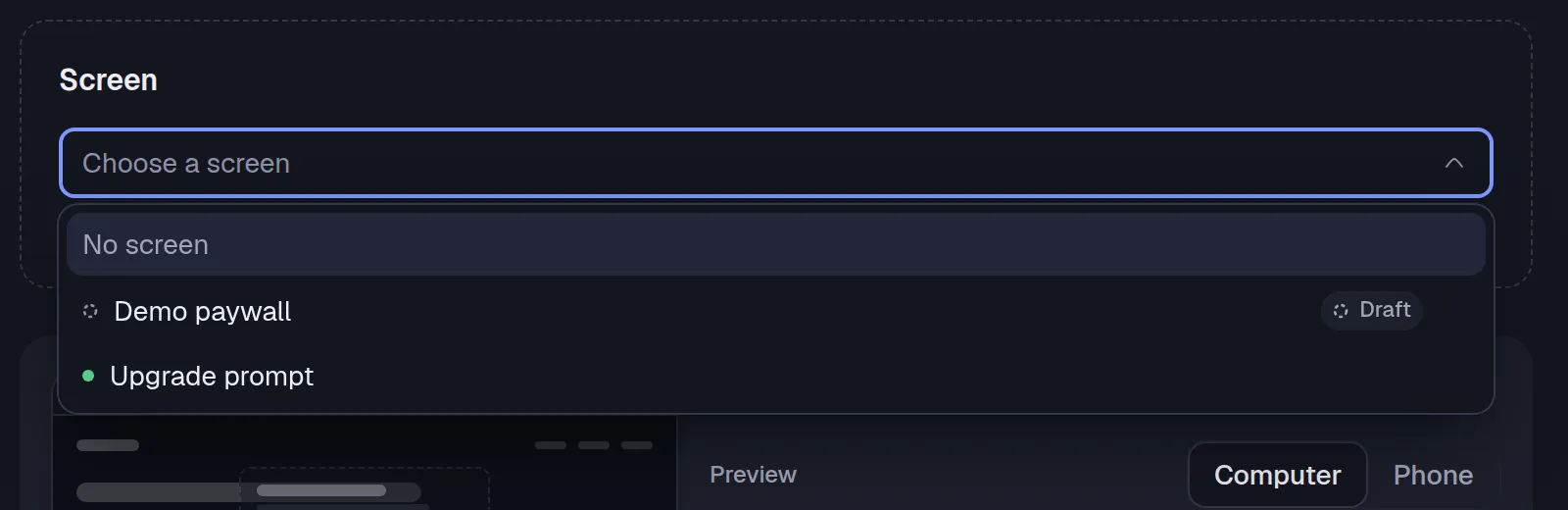
Open Placements and select New placement. Type the Placement key your code asks for, pick the Screen, and select Add placement.
Or open an existing placement and choose the screen under Screen. Your site switches as soon as you change it.
How the screen appears, who sees it and when are settings of the placement. See Placements and Publish and versions.