Plan cards and buttons
Add plan cards, give each a package ID, and decide what each button does.
Use this page when a screen sells a plan, asks a question or moves the visitor on. A plan card carries a package ID. A button carries an action.
In your code
Your site passes the price for each package ID in products and gets the plan the visitor picked in onPurchase. Buttons that run your code arrive in onAction with their action ID. Details: Packages and pricing and Actions and links. Miniwall shows the screen. It does not take payment.
Add plan cards
Open Components. In Purchase, add a Package (a plan card) for each plan, and a Purchase button.
Select a plan card. In the Design panel, under Package, select the button that reads Set package ID.
In the Package ID box, type an ID such as monthly, or pick one of the suggestions. Select Save ID.
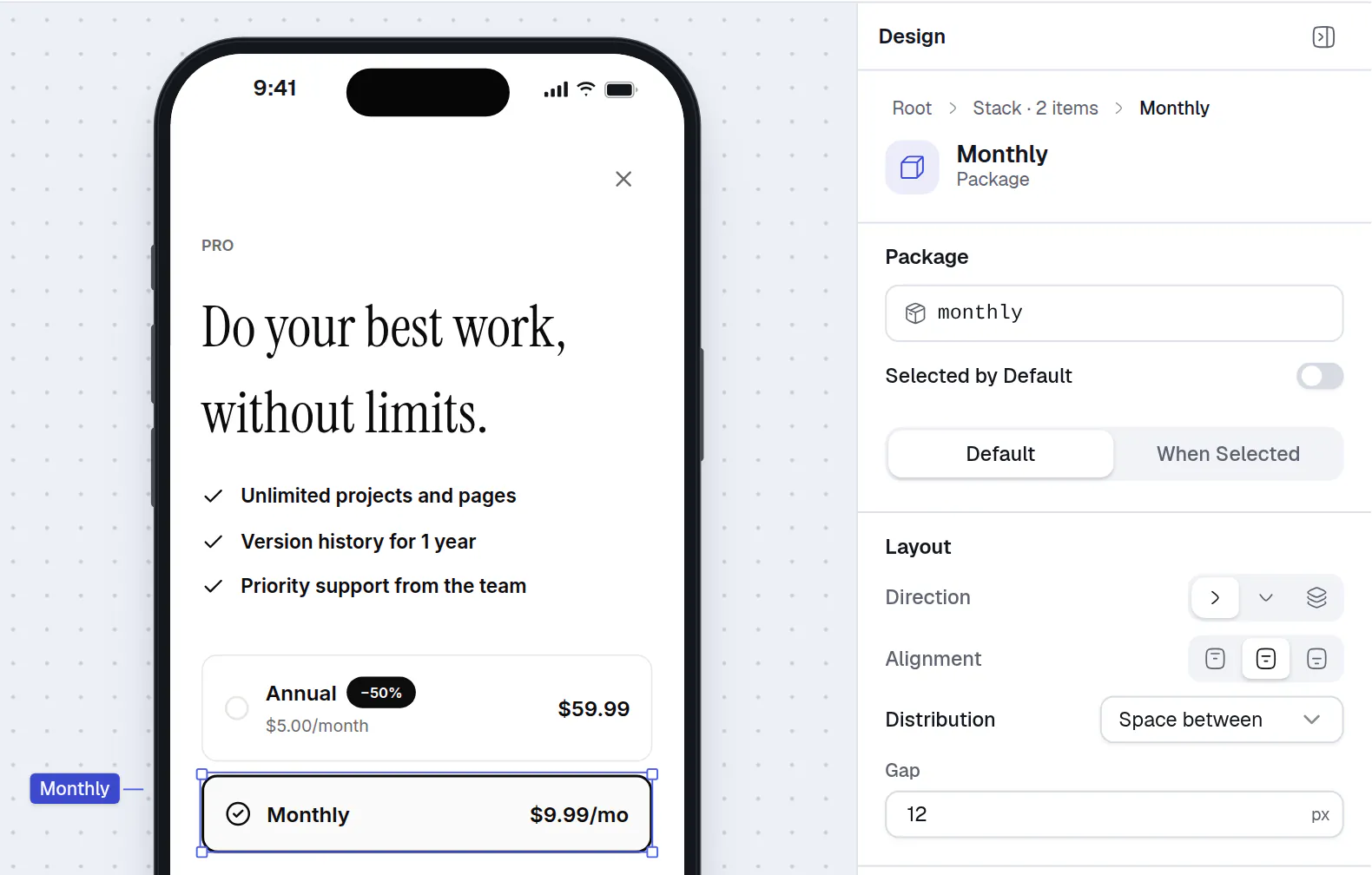
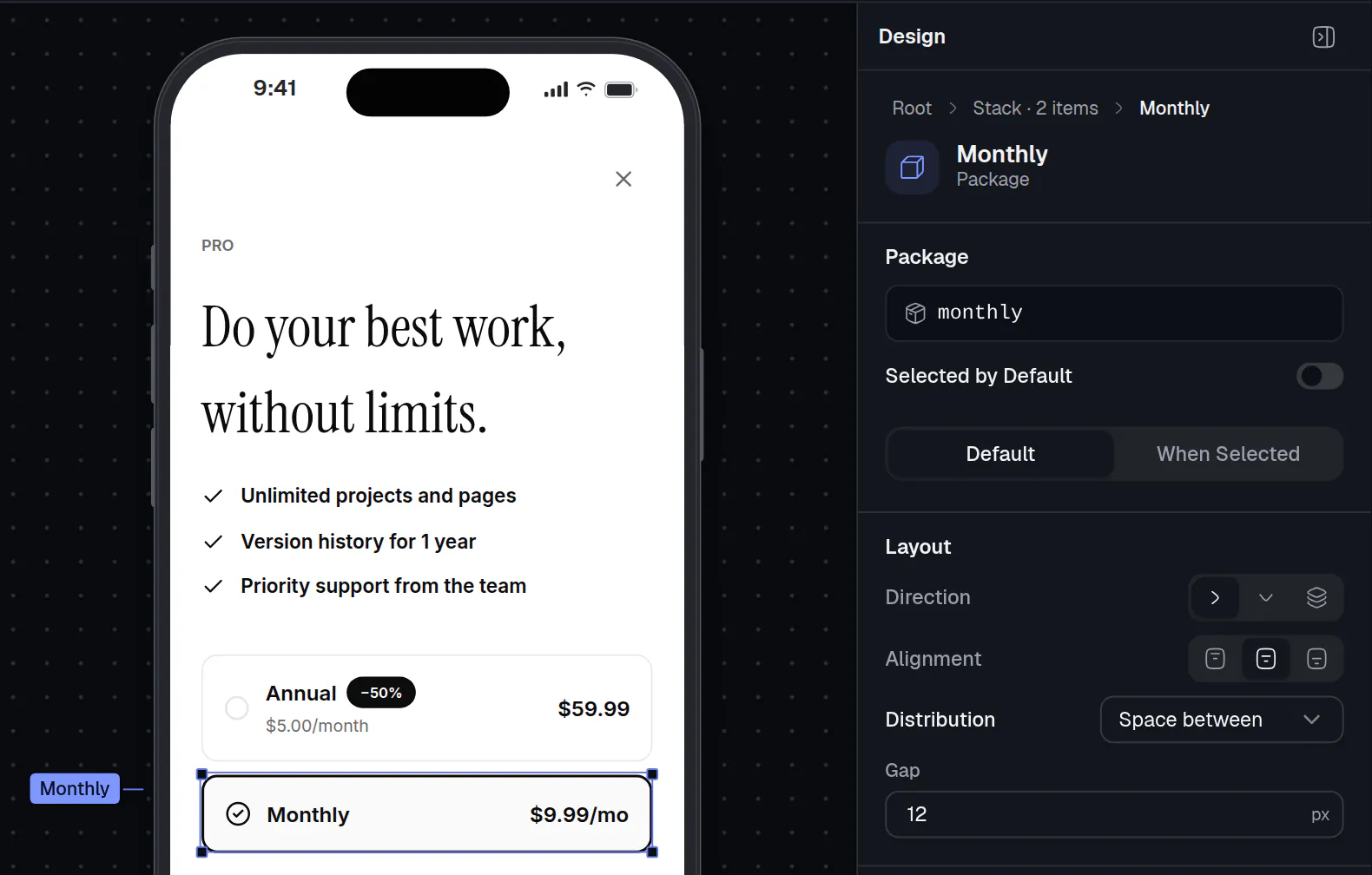
- The selected plan card.
- Its package ID, in the Package section of the Design panel.
Rules for the ID:
- Letters, numbers and
_ $ . -, up to 64 characters. - Each card needs its own ID. If you reuse an ID, the box says so and moves it from the other card.
- Turn on Selected by Default for the card that starts selected.
The canvas shows example prices. Your site passes the real ones. Plan cards and a Purchase button go together: a screen with one but not the other cannot be published. Every card needs a package ID too.
Set what a button does
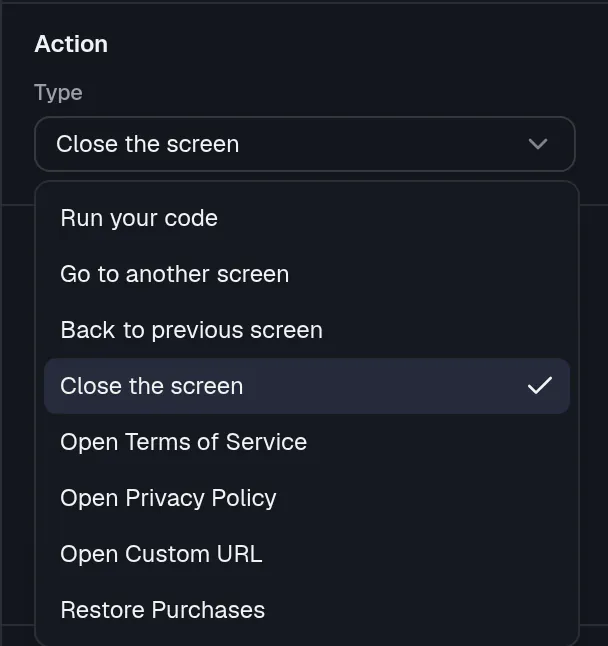
Select a button on the canvas, or add one from Components (Button in Interactive). In the Design panel, find Action and open Type.
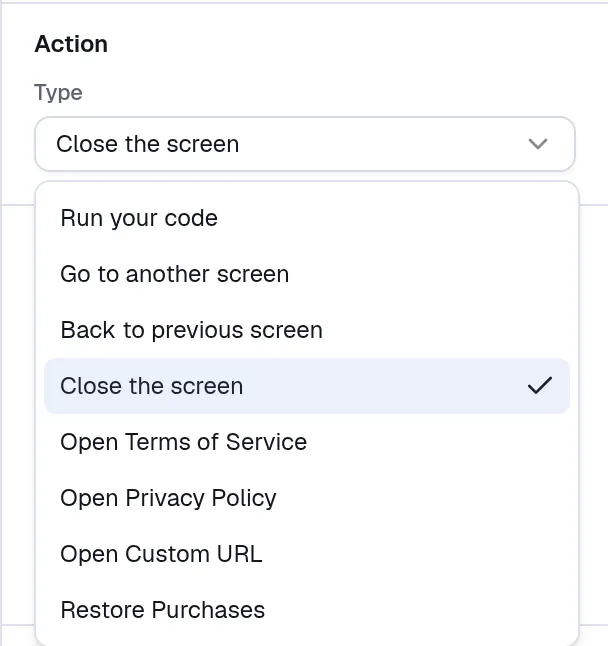
| Choice | What it does |
|---|---|
| Run your code | Sends an Action ID to your site. Your code decides what happens. |
| Go to another screen | Opens another screen of the project. See Build a flow with questions. |
| Back to previous screen | Returns to the screen before this one. |
| Close the screen | Closes the screen. |
| Open Terms of Service, Open Privacy Policy, Open Custom URL | Opens a link. Set the URL and the Open Method. |
| Restore Purchases | Restores purchases. It only shows on sites that pass onRestore to the SDK, and the canvas hides it. |
For Run your code, type the Action ID your site listens for, such as get_started. It is lowercase, starts with a letter and uses letters, numbers and _ . -.
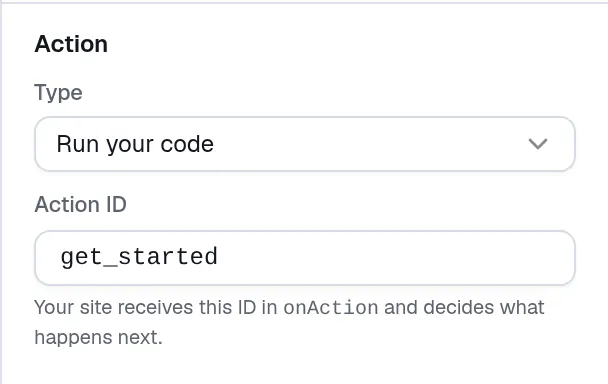
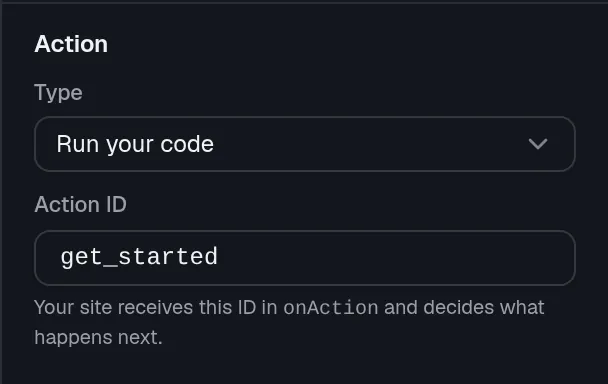
- The Action ID your site handles.
A Run your code button without an ID blocks publishing. The editor tells you which buttons to fix. See Preview, publish and go live.
Next: Variables and languages.